Wordsmyth has always been a resource for online learning, but with so many K-12 teachers engaging in online instruction during this difficult time, we would like to offer a guide to Wordsmyth’s plentiful tools that can help out with the challenging task of teaching children remotely.
For Grades K-2
WILD, a rich and unique online resource with an interactive visual world, provides a charming and engaging means for children to learn both about words and about the real world. It even contains an interactive world map and short descriptions of all the world’s countries. Very young students can safely and enjoyably explore the WILD site by themselves, or they can use it in classroom activities with a teacher.
As you begin to use WILD and encounter more and more of its features, you may wish for further help or suggestions. Our collection of WILD supporting documents will be there to help guide you along your way. This collection of information on WILD will always be accessible on our blog under the category “WILD: Wordsmyth Illustrated Learner’s Dictionary.”
For Grades 3-9
Wordsmyth’s Children’s Dictionary is designed for upper elementary and middle school students. Like the WILD dictionary, the Children’s Dictionary is also well-suited to the needs of young ESL students. Click here to learn more about the Children’s Dictionary.
Wordsmyth recently published its Children’s Dictionary app on both Android and App Store. This app can be used online or offline, which will accommodate the needs of students without consistent internet access.
If you have a school or teacher subscription, you can assign vocabulary word lists for your students to practice online with our vocabulary center activities.
For high school and college students
Our comprehensive dictionary suite contains three levels: advanced, intermediate, and beginner. The linked levels support advanced students and struggling students alike, as users can, with one click, access simpler or more sophisticated definitions and example sentences for words they’ve looked up. The unique leveled structure also provides the best support for older or more advanced ESL students.
In the comprehensive dictionary suite, users will find readable definitions on an uncluttered page, thousands of highly instructive example sentences to clarify the meaning and use of words, synonyms and antonyms, audio pronunciation, and thousands of photos and colorful illustrations. There is also access to glossary, quiz makers, and games in the vocabulary center. Below are links to descriptions of some additional unique features in our dictionary suite that you may find helpful for your students:
Wordsmyth’s Student & ELL Dictionary app is now available on the App Store and Google Play. The app provides the full set of features of our Comprehensive Suite for better user experience on mobile phones or tablets. Once downloaded, it will always be available for you and your students even without internet. Check out the full app description.
Follow us on Facebook, Twitter and Instagram for Wordsmyth Word of the Day and more information about our online teaching resources.
The following is a guide designed to make clear the real nitty-gritty of navigation within WILD. It discusses all four components of WILD—the Book, Collections, World, and Picture Dictionary—but it focuses most particularly on navigation within the Collections and within the WILD World. If you are looking for just a basic overview of WILD functionality, you may wish to go to the Quick-Start Guide to using WILD.
This detailed guide is intended to assist teachers in using WILD’s entertaining visual components to their fullest potential in support of learning. In particular, it seeks to help teachers understand the ways in which they can both allow their students to explore WILD in a fun and independent way as well as to call their students’ serious attention to those things they desire them to learn or to learn about.
The Book: Navigation to and from the expanded entry
The Book’s expanded entry for a word is the place where the largest amount of information about a word is found, as it contains all its images (both illustrations and photographs), definitions, example sentences, and translations. Expanded entries are reached by typing a word into the search box, clicking on the “See more” instruction next to a word on the top level of the Book, or by clicking on an image or entry icon in one of the other WILD components.
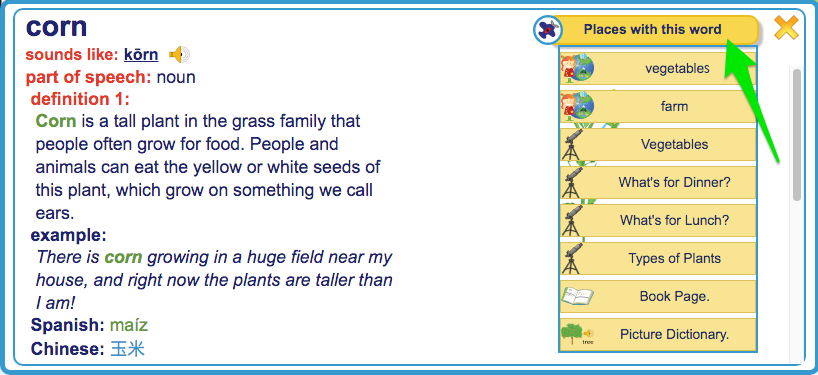
Besides being a repository of information about a word, the full Book entry is also the hub that links it to all the other parts of WILD where the word can be found. Every entry in the Book contains the banner “Places with this word.” Under this banner are listed all the different WILD environments where this word appears.
For example, if you are looking at the entry for “corn,” you can see in the “Places with this word” menu that “corn” can also be found in the Vegetables setting in the Grocery Store in the City. It can also be found in the Farm setting in Nature as well as in the Types of Plants collection, the What’s for Dinner collection, and the Vegetables Collection. Clicking on any one of these labels under “Places with this Word” takes you to the labeled environment. Once in an environment outside the Book, you can always click on the word’s image or entry icon in that environment and return to the word’s entry in The Book. Then, using “Places with this word,” you can navigate again to see the same word in another environment.
Navigation within the Book component
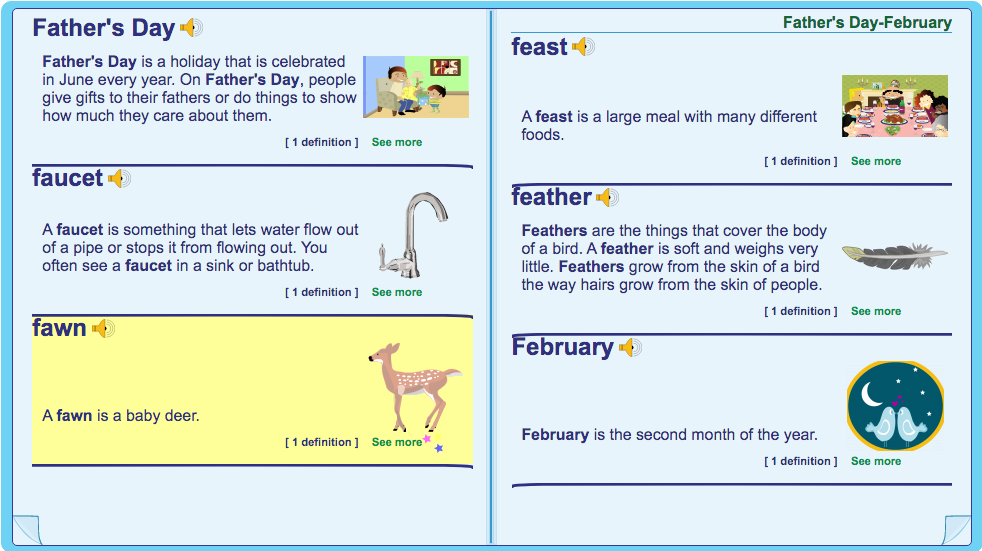
“The Book Page” in the “Places with this word” menu refers to the top level of the Book, which has the appearance of an open dictionary. The “pages” of the Book display images and concise dictionary entries. (They do not offer multiple meanings of words, example sentences, pronunciation, or grammatical information.) Navigating in the Book is done by turning the “pages” or using the search box at the top of the sidebar. Clicking on the “See more” instruction for a word opens the item’s full expanded entry.
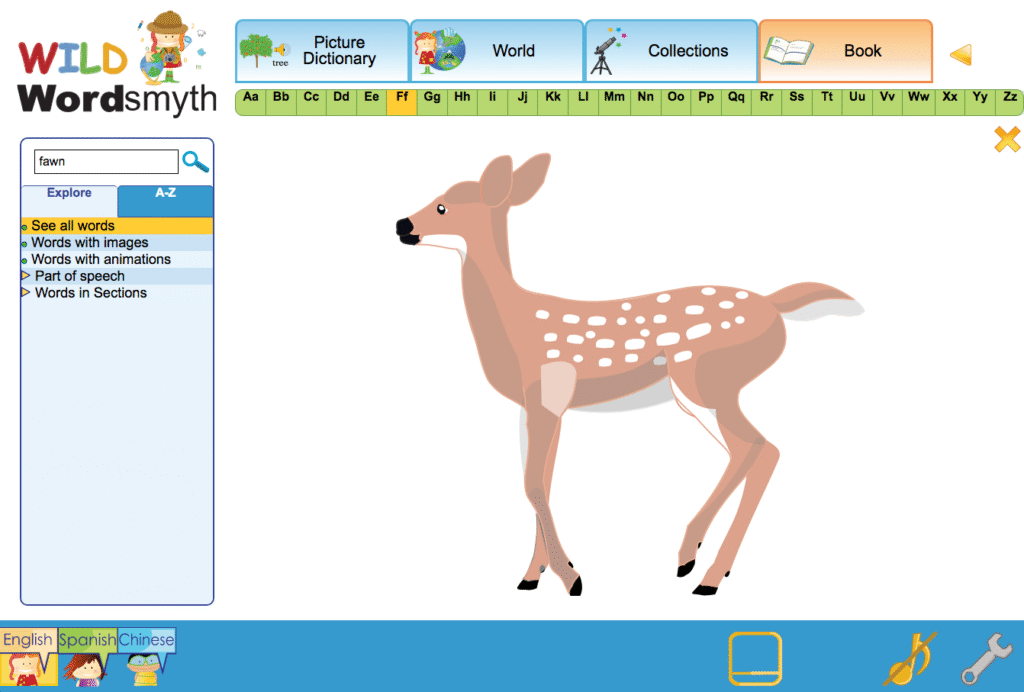
It may be useful to note that the largest images for any item in WILD are found in the Book Page environment. So, for example, there is an illustration for “fawn” in the Young Animals collection and in the expanded dictionary entry, but the “fawn” illustration is at its largest size when you click on the image in the Book Page environment. The many photographs included in WILD are also at their largest size in this environment.
Please note that if you have navigated to the Book Page image from a place in the Collections or World, you can easily get back to your earlier place in either of those environments by using the back arrow at the top right of the screen next to the Book tab.
Navigation within the Collections component
Sidebar navigation versus navigating within the main display: WILD offers two main arenas in which to navigate: the sidebar and the main display. Teachers are more likely to navigate using the sidebar while children are more likely to navigate within the main display. The sidebar provides a more direct way of finding items in WILD and allows the teacher to better control what children are viewing in the main display. This lets the teacher focus the students’ attention on selected items that are to be taught or discussed.
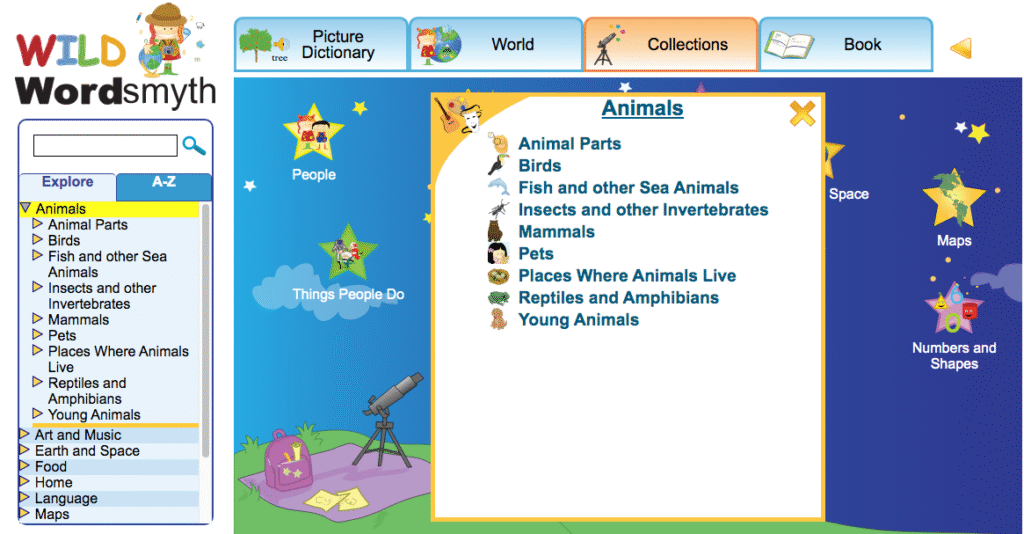
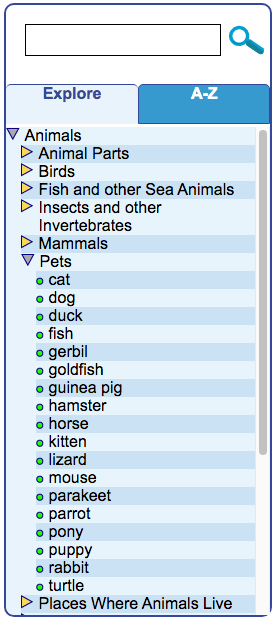
Using the sidebar in Collections: The Collections component is made up of twelve top categories and numerous individual “collections” under each category. The screenshot here shows the top category “Animals,” for example, with its numerous collections, such as “Birds,” “Pets,” “Young Animals,” and “Mammals.” Clicking on a top category label in the sidebar will display there the names of collections that can be accessed under that category. It will also open a visual/textual menu of these collections in the main display, as in the screenshot above. Clicking on the name of a collection in either place will open the collection so that its individual items can be viewed—“ostrich,” “parrot,” “toucan” in the Birds collection, for example. In the sidebar, individual items that make up a collection will appear in a bulleted list under the collection name.
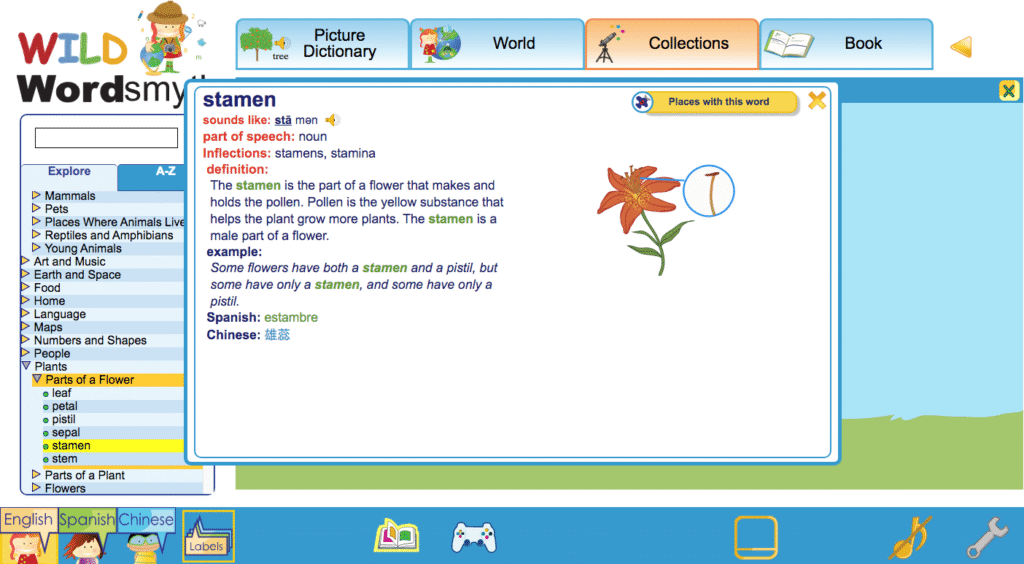
The teacher can also use the sidebar to pop up a desired item from an open collection in the main display (e.g., “stamen” in the “Parts of a Flower Collection”). Popping up an item both expands its image and brings up its audio and dictionary icons. This is done by single-clicking on that item in the sidebar. Double-clicking, or clicking a second time, on a word’s label in the sidebar will pop open the dictionaryentry for that item in the main display. The dictionary entry will show the definition, one or more example sentences, translations, images, as well as other information. (It’s important to note that images in the Book entry can be popped up larger than they first appear and that the Book entry will often contain multiple photographs in addition to the illustration that comes from the collection. If even larger images are desired, clicking on “Book Page” under “Places with this word” will allow you to access images of the item that are even larger.)
The yellow triangle (or “arrow”) next to a top category or collection name in the sidebar can be used for viewing other menus and lists of individual words that make up collections while leaving the main display unchanged. Single-clicking on any of the triangles allows teachers to search through other categories and collections while students continue to view what has already been selected for viewing in the main display. (If one should double-click on a triangle, it will have the same effect as clicking on a sidebar label, however. It will open up a menu or collection in the main display.)
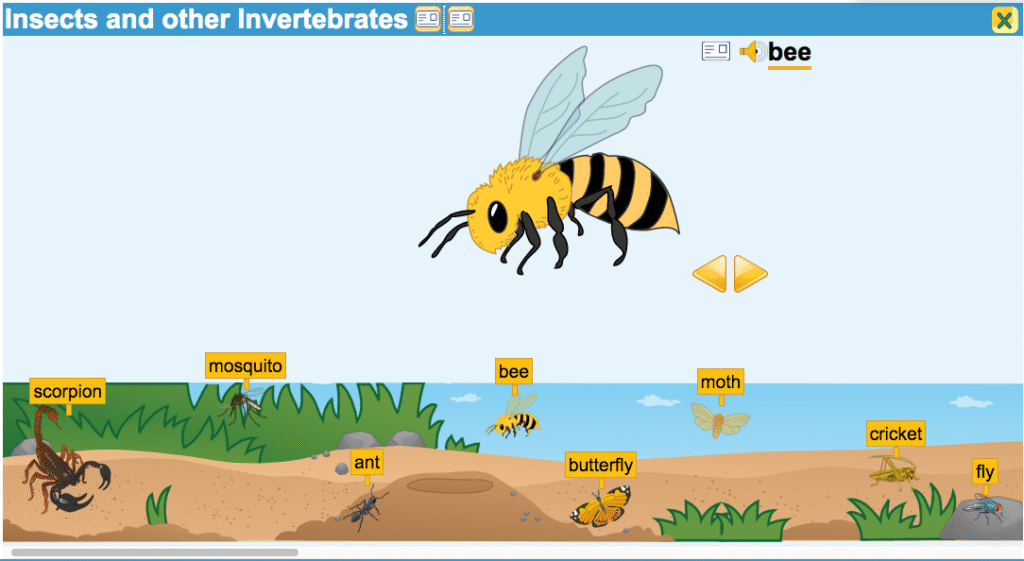
Collections navigation within the main display: When a child (or teacher) mouses over a category in the “stargazer” visual menu—the top level for Collections in the main display—it will simply highlight the image in yellow. Clicking on the image will open the menu of collections for that category in the center of the screen. Making a selection from the menu brings up the selected collection. When opened, the name of the collection (e.g., “Insects and Other Invertebrates,” “Reptiles and Amphibians”) will appear in the blue banner at the top of the display, and Book entry icons next to the collection name will let the child look up the meaning of any unknown words contained in that name in the Book.
Collections are typically displayed as a set of images in a strip which the child can scroll through. Each image in the strip can be clicked on to pop up a larger image of the item. Once an image is popped-up, its audio icon and Book entry icon will appear, giving access to the word’s audio pronunciation and its defining information in the Book. From the popped-up image, the child can also choose to use the navigational arrows to see other popped-up images from the collection instead of scrolling through the strip.
Once an image of an item is popped up, its Book entry can also be accessed by clicking directly on the popped-up image or clicking once again on the item in the strip. Once finished with the Book entry, using the close box or clicking away from the entry will return one to the strip and popped-up image.
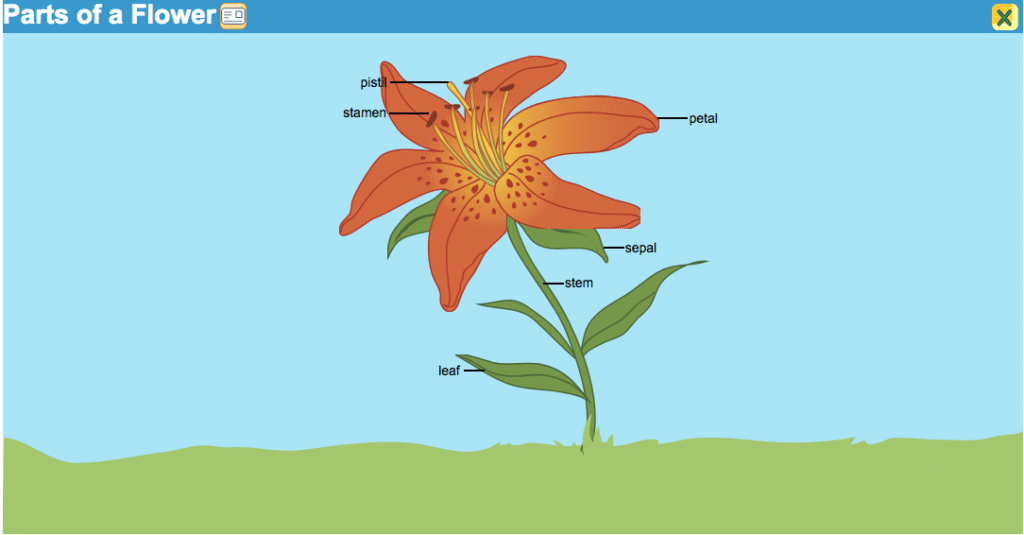
While most collections use the strip format, certain collections are displayed in diagram fashion with one large illustration marked with individual labels. For example, the “Parts of a Flower” collection shows the plant parts labeled on a single illustration of a flower. Mousing over a labeled plant part will highlight it and give access to audio pronunciation for its name as well as defining information in the Book.
When the child is ready to view a different collection from the same top category, the back arrow located at the top right next to the Book tab can be used to leave the current collection and go back to the previously selected menu. So, if one is in the “Flowers” collection, for instance, one can use the back arrow to see other collections under the “Plants” menu. (The back arrow can, of course, be used within any component to return to the previous screen.)
If the child wishes to leave the collection and go to a different component of WILD or to the main Collections menu, the tabs at the top of the display can be used to go to the top level of any WILD component—the stargazer menu in Collections, the choice of City or Nature in the World, or the first page of the letter A in the Book or Picture Dictionary.
Navigation within the World component
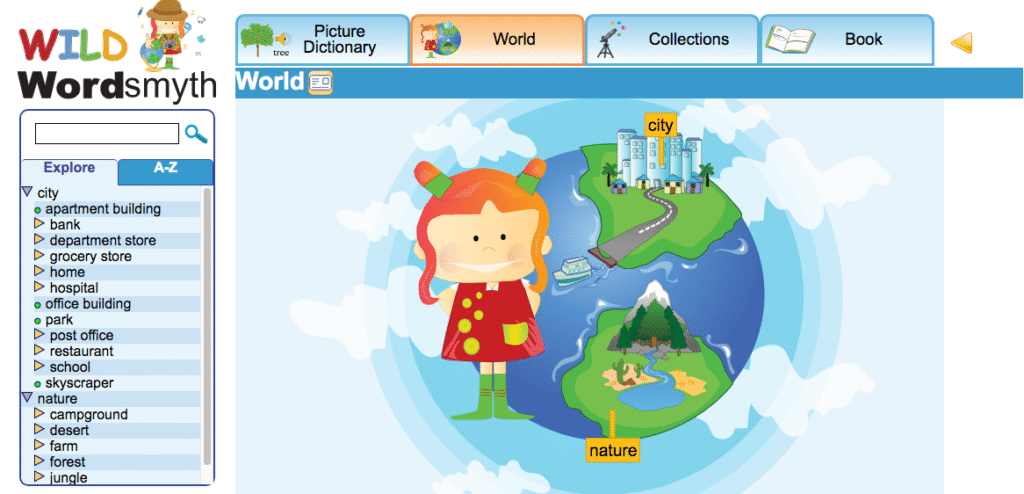
Sidebar navigation in the World: The World is made up of a large number of different settings divided between City settings such as “School,” Home,” and “Grocery Store” and Nature settings such as “Forest,” “Seashore,” and “Desert.” Within these settings are further sub-settings, such as “Menu” in the “Restaurant” and “Music Room” in the “School.” Some sub-settings even have sub-settings of their own, such as the “Refrigerator” in the “Kitchen” of the “Home” in the City.
When the sidebar shows the initial choice of City or Nature, single-clicking on one of the labels will highlight the category image in the main display and darken the rest of the display, but it will not affect what is visible in the sidebar. Double-clicking, or clicking a second time, on either the City label or Nature label in the sidebar will display the menu of settings under the chosen category in the sidebar and will also open the visual menu in the main display. Once the settings menu is visible under either Nature or City, a single click on the other label will reveal the settings menu for that other category.
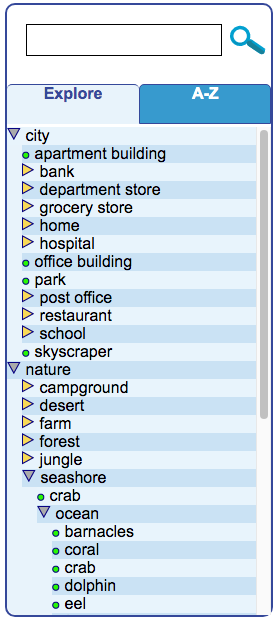
Double-clicking, or clicking a second time, on a setting label, such as “Seashore” or “Hospital,” will reveal in the sidebar the alphabetized names of individual items in the setting as well as the names of any sub-settings, such as “Ocean” or “Waiting Room,” for example. It will also openthesetting in the main display.
Single-clicking on a setting label in the sidebar will simply highlight that setting in the main display while the other parts of the display are darkened. It will not affect what is seen in the sidebar. However, once one setting has been opened and the contents have been revealed, a single click on any other setting label at the same level of operation will show the list of its contents and open that setting in the main display. (Sub-settings, such as the “Den” in the Desert setting or “Pond” in the Forest setting, are at a level below the main settings, so opening these sub-settings, requires a double-click. A single click will highlight a sub-setting and darken the rest of the setting.)
The ability to highlight a setting in the main display without opening it allows the teacher to discuss the concept of that setting (or sub-setting) with students without having to present them with all the visual and textual information that the opened setting offers, which could potentially distract the students from the discussion. This is the strategy behind there being a difference between single-clicking and double-clicking on these sidebar labels.
If a setting is currently open and one wishes to go back to just highlighting other settings rather than immediately opening one or more of them at that level, all that is necessary is to click on the label of the category above the current level. So, for example, if the Seashore is open and one wants to return to highlighting other settings such as Forest or Desert in the main display, one would click on the Nature label. This closes the Seashore and makes the other main Nature settings visible again.
As with the Collections, the yellow triangle, or “arrow,” next to a setting name can be used to search through menus and lists of words in the sidebar while not affecting what is being viewed in the main display. A single click on a triangle reveals the contents of a setting—its individual words and sub-settings–but does not open the setting in the main display. The teacher can also view the contents of multiple settings at the same time by single-clicking on multiple triangles.
At any point that the teacher wishes to focus students’ attention on a particular word while navigating in the World, its listing in the sidebar can be single-clicked to highlight the item in its setting. (The rest of the setting will darken.) Double-clicking on the word’s listing in the sidebar will open the item’s Book entry. A larger image and possibly additional images can be accessed there as well as other dictionary information. The search box, can, of course, be used at any time to highlight a word in a setting or go to its entry if it is not contained in the current setting.
It should be noted that because the highlighting of large items in a setting in the main display can sometimes overlap with that of smaller items in the setting, smaller items can sometimes be tricky to highlight and select—the highlighting of the larger item blocks the smaller items, in other words. When this occurs, the sidebar can be used to highlight and select these smaller items. Album view can also be used in these cases, as album view isolates each item from the rest of those in the setting, making each clickable. (Album view can be turned on by clicking on its icon in the footer.) The sidebar and album view can be useful for this same purpose in the Collections, particularly in the World Maps, where smaller countries can sometimes be blocked by the highlighting of larger ones.
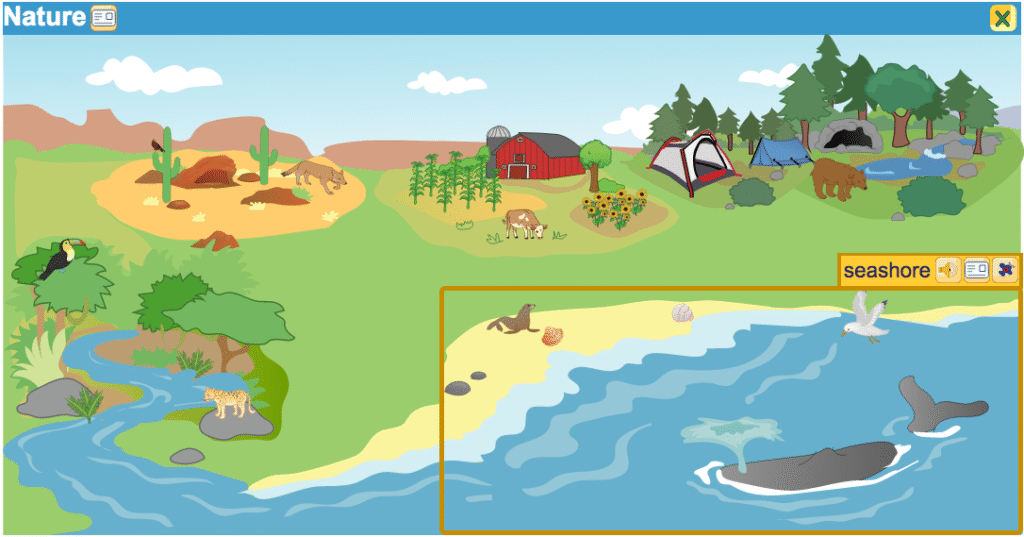
Main display navigation in the World: The main display is designed for easy navigation and exploring. When a child (or teacher) mouses over a setting in the main display, the setting is highlighted and three icons appear: the audio icon, Book entry icon, and airplane icon. Clicking the airplane icon opens the setting. Clicking within the yellow box surrounding the setting also opens it and displays sub-settings contained within it as well as individual items that make up the setting.
Once in a setting, a child may explore individual word items by mousing over images or clicking on them. Mousing over an item highlights it and brings up its audio icon and Book icon. Clicking on an item immediately opens its Book entry. (Note that it is the item itself, the image, that is clicked on. Clicking on a wordlabel in a setting does not cause any action to occur.)
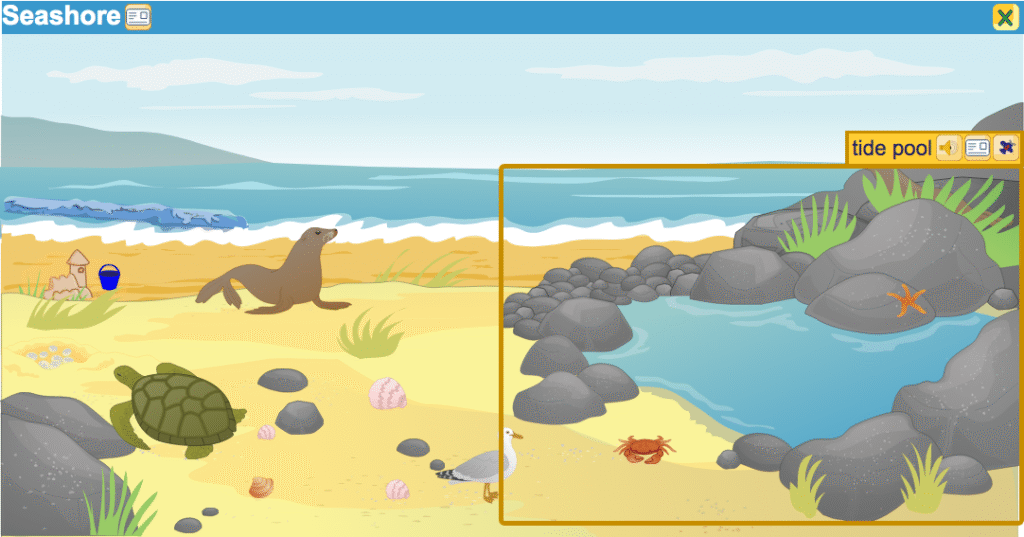
When mousing over images in a setting, the child will find that some highlighted images have airplane icons and others do not. The airplane indicates that the image represents not only a word but a setting—the Tidepool, for example, in the Seashore setting. The child can enter the setting by clicking on the airplane icon or by clicking within the highlighting box surrounding the image.
One scenario for World navigation in the main display might include clicking on the image at the top level to open Nature, clicking to open the Seashore setting, hearing how to pronounce the word “sea turtle,” looking up the word “tide pool” by clicking on its entry icon, clicking off the Book entry and looking again at the Seashore, clicking to open the Ocean setting, and, finally, reading a bit about starfish.
After exploring in one setting, the child may leave that setting by clicking on the close button or using the back arrow. Then the child can click on any other highlighted setting. In addition, as in the Collections, it is always possible to click on any one of the tabs at the top of the screen to go to the top level of any of the WILD components.
Navigation in the Picture Dictionary
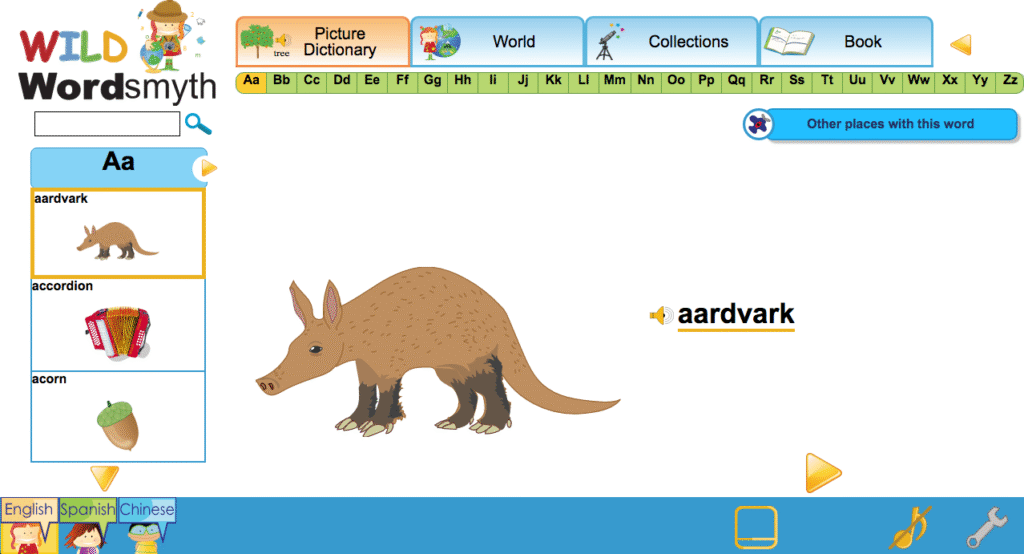
Children can browse through the Picture Dictionary by clicking on the yellow navigational arrows in the main display or by using the scroll bar on the left side of the screen. Children can also use the thumb index at the top of the page to go to words beginning with a certain letter. Of course, teachers can navigate directly to a particular word by using the search box.
The Picture Dictionary defines words by picture only, but more information can be easily accessed through the word’s link with its dictionary entry in the Book. From there the child can navigate to that word in any other environment where it appears in WILD.
This overview of the structure and general operation of WILD is designed to help teachers get started using this rich online resource with their young students. For more detailed information on how to use WILD, please go to A Detailed Look at Navigating in WILD.
WILD’s structure
WILD consists of four components, or learning environments, each providing unique information to assist young learners as they develop skill in different areas of literacy.
The Book: An illustrated K-2 dictionary of nearly 4000 words with easy-to-read definitions, multiple senses of words, and kid-friendly example sentences. All labeled items throughout WILD are linked to their entries in the Book, and the Book entries themselves serve as hubs between the different WILD components.
World: Interactive picture dictionary showing labeled items in natural and urban settings (such as “Forest,” “Farm,” “School,” and “Grocery Store”) with multiple levels for children to explore.
Collections: An expansive set of illustrated objects and concepts arranged in categories called “collections.”
Picture Dictionary: A simple dictionary for very young children with words defined by picture only. As in all other WILD components, human-voiced audio is also included for each word, and each word is linked with its entry in the larger dictionary, the Book.
The WILD Display
The component tabs
At the top of the display are tabs that give access to the top levels of each of the four WILD components (as shown in the screenshot below). No matter where you are in WILD, you can always click on one of the blue tabs at the top of the screen to go to the starting level of any of these four components.
The main display
The center area of the screen, “the main display,” offers simple, visual ways for children to browse and explore in WILD. In the World, children click on settings in the main display to enter those settings and explore what is there. In the Collections, children first click on a choice from the visual/textual menu and then browse through the selected collection by sliding the strip at the bottom of the screen or clicking from one popped-up item to the next. In the Book, children can browse through the dictionary by electronically turning the pages, and, in the Picture Dictionary, children can scroll through the pictures using the sidebar or clicking the navigational arrows.
The search box and the sidebar
The simplest and most direct route to a word in WILD is the search box. If you have a particular word you want to focus on, you can simply type it in the search box, which is always found in the upper left corner of the page. If the word is contained within the learning environment that you are currently in—the Jungle in the World, for example—the result will be highlighted there. If it is not contained in that environment, the word will come up from the Book.
Below the search box, the sidebar in each WILD component allows for more structured, textual browsing. The sidebar is an excellent tool for teachers to quickly find words, settings, and collections they wish their students to focus on. Teachers will likely use the sidebar as their primary means of navigating the site.
At the top of the sidebar, there are two tabs: Explore and A-Z. The sidebar tab labeled “Explore” displays a table of contents for the WILD component you are presently in, or shows ways of filtering the contents of that component. If you are in the World, the sidebar shows the menu of the places (“settings”) where you can go and all the items that can be found in each place. In Collections, it shows a menu of all the various top categories and collections, and a list of all the individual items in each. And in the WILD Book, it shows a menu of features by which you can filter the dictionary list so that you can see only those entries containing a desired feature—only words that are adjectives, for example, or only words that have animated illustrations in their entries.
The tab labeled “A-Z” in the sidebar gives access to an alphabetical list of all the individual words that can be found in the particular WILD component that you are currently in.
The footer: ways to customize the display
The footer in the WILD display gives various options to control and customize the learning environment.
Language options: While English is the default language for WILD, you can choose to add Spanish or Chinese by clicking on the respective language icon. Clicking once again will turn the selected language off. (English can be turned off as well. However, if English is turned off, it will need to be turned on again in order to turn off Spanish or Chinese.)
Labels: The default view for World and Collections shows individual items labeled in their settings or collections. Word labels can be turned off or turned back on by clicking the Labels icon in the footer.
Album View: Album View takes the individual labeled images out of a Collection or a World setting and displays them against a plain, white background as in a photo album. (The images are presented in alphabetical order.) Album View can be helpful in focusing students’ attention on particular items that are being taught or discussed. Clicking the Album View icon turns the view on or off. Clicking the close box also returns you to the setting or collection that you came from.
Games: In World and Collections, you will see a games icon in the footer. Clicking on the games icon will activate vocabulary games using the words of the particular collection or setting you are in.
Full screen: Full screen view hides the sidebar. The sidebar is primarily for teachers to use for searching and browsing when planning a lesson or activity or when guiding a lesson. When children are using WILD to explore on their own, full screen view can help them concentrate. Full screen view with labels off can also be used for fun and informal quizzing.
Audio tooltips and tooltips language: Audio tooltips can help a child who can’t read yet to explore WILD easily. When audio tooltips are on and a user mouses over an icon anywhere in WILD, an audio explanation about the icon will play automatically. In the footer, the audio tooltips icon looks like a musical note. The icon next to it in the footer—the wrench—can be used to change the tooltip audio language to Spanish or Chinese.
We are proud to announce Wordsmyth Word of the Year 2020, selected by the votes of members of the Wordsmyth community.
Here are a selection of the comments from our users who voted for the word social distancing.
This is a common theme – what most people must do or do not want to do. And truly feel! How social distancing impacts our whole society and world is key to what is happening- causing many economic, health snd mental social effects. All or most of the other terms were here before, have various meanings and will last after the pandemic. A missing term is pandemic – plus the term is new in 2020. The others are not.
I personally would have chosen the word “triggered” to represent 2020, but since that was not an option, I picked social-distancing. This word/term went from zero to worldwide household use this year. Not only does it apply physically, but here in the USA, after so many people let their unfiltered, true colors fly on social media regarding many of the other nominees on this list (Quarantine, patriotism, racism, climate change, as well as politics) many of us have had to figuratively and mentally socially-distance ourselves from more than a few acquaintances.
When I first heard “social distance” used, I thought it was a crazy, made-up, politically-correct way of normalizing the bureaucratic handling of COVID-19 and the life-altering restrictions and control that surprised us. Now, I use it regularly because these changes—mask-wearing and the six-feet rule—have indeed invaded my life, and it’s the best word I know to communicate the absurdity of this new normal.
It’s added a significantly new and odd importance to our lives. That’s why I’ve chosen this word . Maybe , it’ll be one of the most radical changing word that humanity has ever seen in its history so far.
Although several other words have taken on significance this year, they are generally familiar and could be or have been applied to several years. I did not choose “essential worker” or “contact tracing.” Both have meanings specific to 2020, but contact tracing, while not familiar to most people, existed before 2020. Essential workers has become a noteworthy category in 2020, but still seems fuzzy and context-specific. As a number of people have argued, what is “essential” work depends on who is using the term. By process of elimination, I chose “social distancing” as a term that, I believe, was coined for the pandemic (though maybe not), that has a very clearly defined meaning, and that represents a substantial burden and painful experience of 2020.
“Social distancing” describes a type of community behavior, now formally recognized, and recommended, by all governments seeking to slow or stop the spread of COVID-19. It applies to people of the world who appreciate, either by government education, or knowledge gained during life events, that keeping a minimum distance between people limits the transmission of viruses between them. As far as I know, this combination of English words had not been used before the year 2020, or before the start of the current pandemic. It describes a behavior, which to many people is instinctive during influenza and common cold outbreaks. Formal and widespread floor marking as a means of encouraging social distancing is, to my knowledge, a first in tangible signs to remind people of a newly named community practice.
“Social distancing” received the largest number of votes of the 10 words that were nominated as WOTY 2020 candidates. Here is a chart showing how they ranked, based on the votes of our community:
To recognize everyone who participated. we made a word cloud using all the comments we received, including those we voted for other words.
Thank you very much!
We’re looking forward with hope to the new year – 2021!
The Wordsmyth educational mission is to foster awareness of how words work in communication, and our WOTY nominations this year have drawn attention to the way words work in society. This has been such an extraordinary year—bringing many new words and concepts to our attention—that Oxford Dictionaries couldn’t choose one word as their word of the year.
We are pleased with the responses to our nomination of 10 words. But if you haven’t voted yet, please vote soon. Our voting period ends on Dec. 15, 2020.
When you see some of the comments people have made, you will want to add your voice. So… here is a selection of the comments supporting the choice of each of our WOTY nominations.
climate Change
It is a perfect metaphor for a too-often conflictual relationship between science and politics. Scientists make measurements and say “Watch out, the climate is changing”;, then predict possible outcomes based on current mathematical models. Politicians project scientists’ recommendations onto their electoral base and then, depending on the magnitude of the estimated loss of consensus, become either stark negationists or vociferous supporters.
contact tracing
I chose this word because i’ve been quarantined twice this year so i’ve been out of school almost as much as i’ve been in school.
essential worker
Our media and educational system often praise people who have jobs that are powerful, even if they don’t make a significant contribution to society. For example, people who inherit wealth or Wall Street stock traders often make millions of dollars without having significant knowledge, moral virtue, or a valuable skill. Workers who have knowledge, virtue and skill often go unrecognized and unappreciated, because they don’t have power. Calling them “essential” can make us more aware of this injustice.
Furlough
Thousands of working people have been in furlough in this Covid-19 year.
Hero
Heroes make many selfless decisions and sacrifices to protect others. “Ordinary people” now find themselves living in uncertain and dangerous times among the pandemic and the political landscape of division. Trusting instincts and science, unsuspecting people have stepped up to become front-line healthcare soldiers, vaccine volunteers, quarantined nursing home residents, essential workers (grocery shoppers, tradespeople, small business owners, etc.), First Responders, neighbors, friends and family members who social distance, wear a mask, and patronize threatened local small businesses, are the heroes of 2020.
Patriotism
The real patriots have come out to support the country and not destroy and loot it.
Quarantine
So many people have been quarantined or know someone who has been this year due to the pandemic (which would have been my first choice for WOTY).
Racism
It is at the heart of many of our problems including higher COVID-19 mortality rates for Blacks. There is a lack of understanding about what ot is and how it operates, particularly at the systemic level. It drove protests across the country both on the Left (against it) and on the Right (for it, though they’d deny that). A lot of people think it’s an overt act and not a way of life or way of thinking.
Social distancing
Although several other words have taken on significance this year, they are generally familiar and could be or have been applied to several years…. I chose “social distancing” as a term that, I believe, was coined for the pandemic (though maybe not), has a very clearly defined meaning, and that represents a substantial burden and painful experience of 2020.
Other words on this list reflect the unique stress the Covid pandemic put on the world, but this introduced a new concept we are all acutely aware of now.
Structure
Saying that “structural” change is needed points to deeper changes than just changing attitudes or even policies. We have begun to talk about changing our institutions, not just our policies – and hopefully making them more “democratic”. There are Republicans and Democrats who want more democracy.
We were first to include you! In 2018, Wordsmyth launched the first participatory Word of the Year (WOTY) process. There are a number of organizations that announce WOTY selections each year — including most of the major dictionaries of English. Different criteria are used to select a WOTY, depending on the internal deliberations of the organization. The Wordsmyth process is different. We want to involve our users in the WOTY process each year. And we want to make the discussion of WOTY candidates an interesting and educational process.
Everyone can participate — students and teachers, friendship and work groups, and families can all take up the discussion of what words have been most important in 2020. Sometimes these may be definitional discussions – when the changing meanings of a word become significant. For example, among this year’s nominations is the word “racism,” whose meaning garnered much attention this year. Or there may be significant importance in the discussion of which word to use in discussing some part of our society and culture. For example, some states with conservative constituencies who are skeptical of “climate change” have been searching for other terms to use in applying for financial relief from the damage from recent storms.
Our 10 nominations! This year we are launching our participatory WOTY selection process by presenting our nomination of 10 words that have been significant in this most unusual and challenging year. Some of these words have been noted already in our “About these words” blog posts. (See “contact tracing” and “essential worker”) We have nominated words with attention to four criteria:
The word is significant in important events or movements, raising important questions about our cultural values and beliefs.
The meanings or uses of the word have been discussed in various cultural media, fostering public awareness of the importance of the word and its uses.
The word is open to multiple interpretations, inviting dialogues about their meanings.
The questions raised are of interest and value in the pursuit of lifelong education.
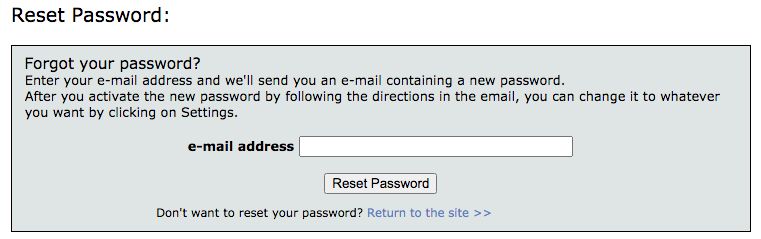
If you forget your password, you can reset it by clicking “Forgot your password?” on the sign up screen.
On the next screen, type in your email address, and click “Reset Password”.
An email will be sent to you with a new password (generated by the system) and an activation code. Please note that sometimes the email might end up in a junk mail folder.
Copy and paste the activation code and new password in the respective input boxes, and click Activate.
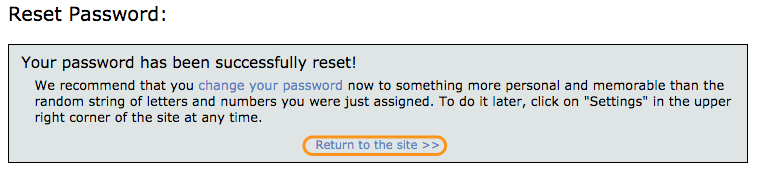
At that point, your password is the one Wordsmyth assigned to you. We recommend you to change it right away to a secure password of your own.
Click the link to return to the Wordsmyth site, and go to settings.
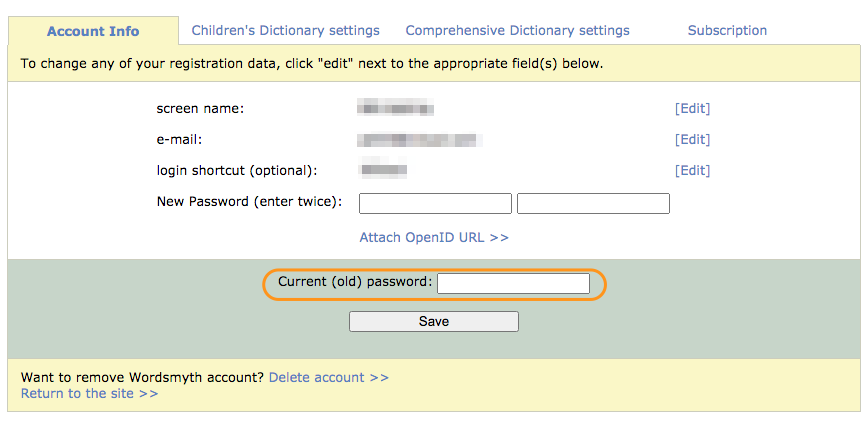
Under Account Info tab, click on [edit Password].
Type in a new password of your choice – twice. We also require you to provide the current password to identify you and verify that it is you who are making the change. It’s easier to copy the current password from the reset password email and paste it in. As you can see, we take security very seriously.
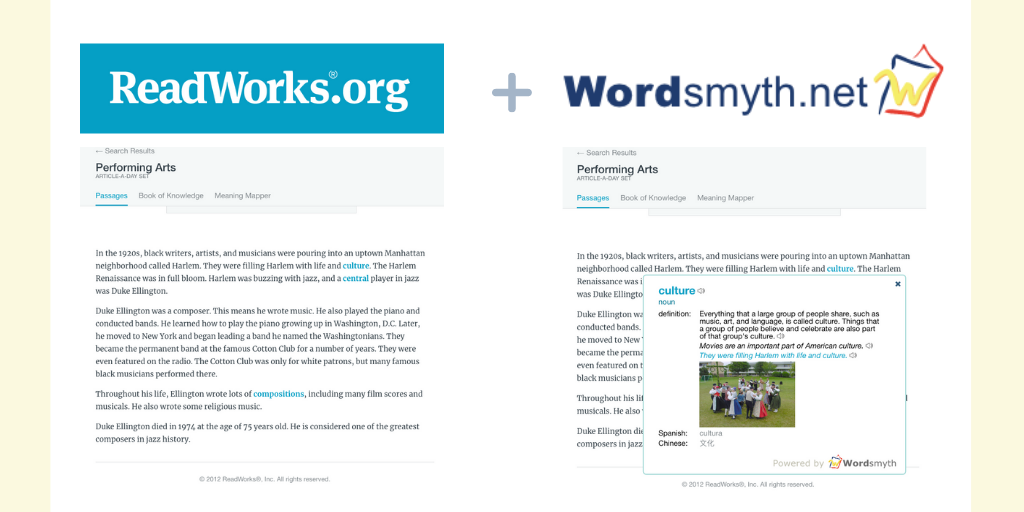
Working in partnership with the acclaimed ReadWorks reading program, Wordsmyth is powering the new “ReadWorks Vocabulary Widget,” now live at www.readworks.org.
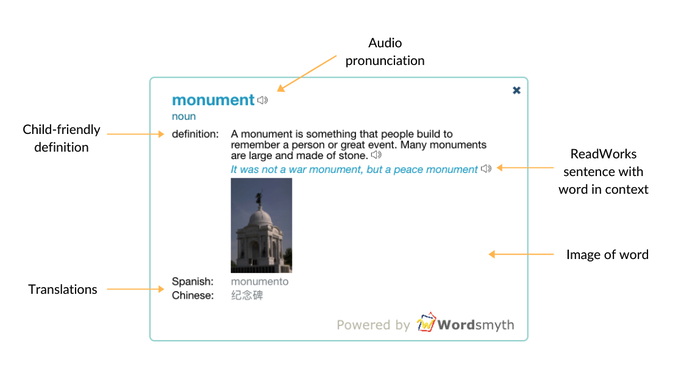
The new vocabulary widget is automatically available for students to use during reading on the ReadWorks site. ReadWorks pre-selected vocabulary words appear in bold and in blue in their reading passages, and students can click on any of these vocabulary words to open the widget. From there, they can listen to a human-voiced audio pronunciation of the word, see images and varying word forms, and read a child-friendly Wordsmyth definition aligned to how the word is used in the reading passage. Translations of the word into Spanish and Mandarin Chinese are also provided.
Learn more about the ReadWorks vocabulary widget powered by Wordsmyth on the ReadWorks help page.
Using your own text in the Wordsmyth Vocabulary Center
If the idea of adding a vocabulary learning component to a text of your own choosing appeals to you, you can get good results by coming to the Wordsmyth Vocabulary center. Here, you can:
extract vocabulary automatically from any text to create vocabulary lists
use your vocabulary lists in Wordsmyth activities for practice and assessment
save and share your word lists with your students or learning partners
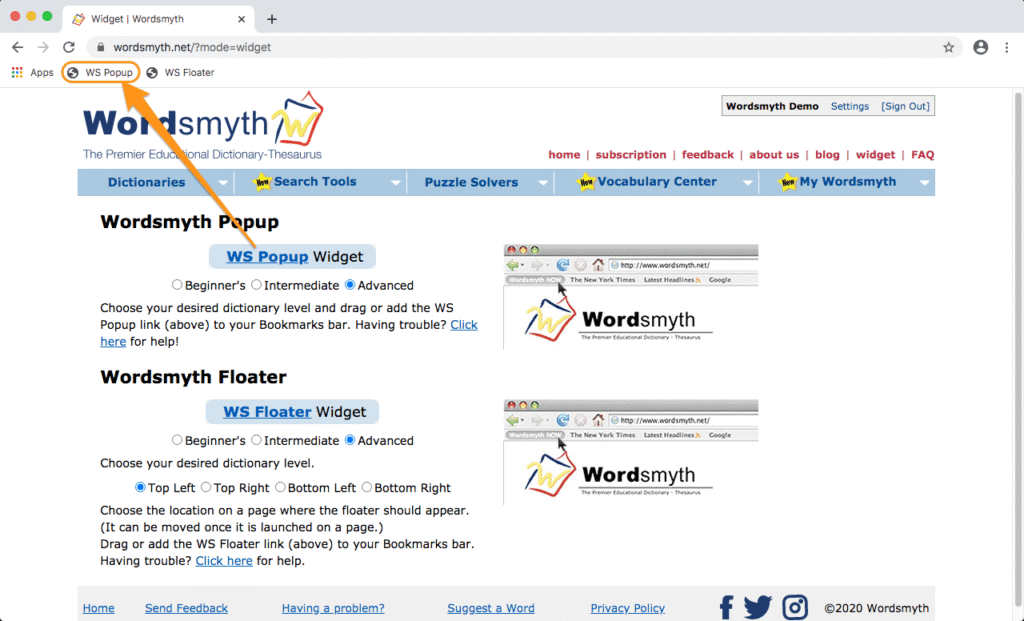
Wordsmyth’s own vocabulary widget, available from its website, allows you or your students to look up words on any web page with any browser. If you are using ReadWorks, your students can use the Wordsmyth widget to look up words other than the ReadWorks pre-selected ones. (You can even compose or paste a text of your own in Google docs and have your students use it with our widget.) Simply drag and drop our widget icon to your browser toolbar from our widget page. Then click on words you want to look up while reading. It’s easy, and it’s free!
Teachers, the Wordsmyth Vocabulary Center offers some of the best vocabulary-teaching tools you’ll find online and supports your curriculum’s vocabulary component for all subjects. In addition, it provides a remarkably easy way for your students to personalize their vocabulary learning on their own.
Just pick a list and choose an activity. It’s simple!
On the Activities page of the Vocabulary Center, you can pick a word list from the yellow sidebar. If you haven’t created any lists of your own yet, you can always choose one from the Wordsmyth Vocabulary Inventory (WVI) lists according to your grade level. These are leveled and curated academic vocabulary lists. After you’ve selected your list, its name will appear in the blue banner above the activities.
Now you can choose to have your students study the list of words with one of the study tools, or play a game using the words, or take a quiz to see how well they know them.
For a customized learning experience, you can make your own word lists with ease
If you have a list of words you want your students to learn, or that you want to learn yourself, go to the Word List Maker. You can type or copy and paste your list of words into the space provided. If you want to make a word list based on a reading, you can copy and paste your article into the space and the text analysis system will automatically extract the best vocabulary words and create a word list for you.
By adjusting the Word list maker settings, you can decide what type of words you would like to have in your list.
All your word lists are saved in the My Word List section of the My Wordsmyth menu. There you can preview, edit, or rename your lists. You can use your lists anytime with any activities.
As an educator, you can share your lists with your students. Anybody who has the URL of a particular word list can use the list with any of the Vocabulary Center activities.
Subscribe to access full Wordsmyth dictionary features and vocabulary tools. Teacher Tools allow educators to manage classroom, create and send assignments to students, and get comprehensive reports on their vocabulary growth.
Yes! As part of our recent update, we’ve adopted a new logo for WILD. In addition to the logo change, we’ve made many improvements to the dictionary that will make it even better at supporting the online education of learners in grades K to 2. We are aware that teaching young children online can be extremely challenging. With our recent update, we hope to make that task not only easier but a bit more fun.
More illustrations and animations
We’ve added a whole host of new illustrations and animations to WILD. Check out the new Parts of a Flower collection, for example, or the expanded Weather collection—complete with the sound of thunder! Discover our new set of World Maps showing geographical features such as rivers, mountain ranges, and seas. And take a look at some of our new animations for action verbs in the Language collections to see a sample of newly enriched illustrations in the WILD interactive learning environment.
Improved navigation system
Part of the uniqueness and beauty of WILD lies in the connections between its four environments: World, Collections, Book, and Picture Dictionary. A child may, for example, start by seeing the spider inside the Den in the Desert setting (or inside the Barn in the Farm setting), click to learn more about what a spider is in the Book, and jump from there to see it in the Insects and Invertebrates collection among its fellow creeping and crawling animals. Navigating between these different environments is not only fun for children but allows them to quickly and easily expand their knowledge set for a word while building up the memory store they have for it. Navigating in WILD has always been simple, but our current update has made it even smoother and more intuitive.
Subscription to WILD offers more than you think!
As a stand-alone Wordsmyth product, WILD offers tremendous value to the user—and our new update has added even more to that value—but did you know that when you subscribe to WILD, you also get full access to all of Wordsmyth’s upper level dictionaries and vocabulary tools? This includes, among other resources, its Children’s Dictionary, which was written for upper elementary students and includes Spanish and Chinese translations for all its words and example sentences. This is a truly extraordinary value!
Educators, please check out our Educational Group Subscription options. With subscription, your young students will have direct access to all of WILD’s features without the hassle of registration and logging in. It couldn’t be simpler!