Author: Wordsmyth

  • Wordsmyth Word of the Year 2019

    Starting on November 1, 2019, Wordsmyth invites you to submit your nomination for the 2019 Word of the Year. It could be your “favorite word” or a “great word” that has been significant in some way in the past year. It could be a hot topic in the news or a word that has meant something to you as an individual. We want to know why you care about it, what the word means to you. If the word you nominate resonates with our Wordsmyth user community, it could become our Wordsmyth Word of the Year for 2019.

    Here is last year’s WOTY — “Love.” This heartwarming word was nominated by a Wordsmyth user and selected by a vote of Wordsmyth users. You can join the process! What is your word for 2019?

    It’s not a competition. It’s participation.

    We want to encourage our users to actively participate in word learning and study by sharing words that have deeper meaning in society and in their own lives.

    Here’s how Wordsmyth WOTY program works:

    1. Nominate a word on our website. You can check its definition in the Wordsmyth dictionary. Nominations will be open until December 15th. The Wordsmyth team will select 10 words from all of the nominations. The quality of the nominating essay will guide our choices.
    2. Vote for your Word of the Year! One person, one vote–make it count! Voting starts on December 16. We will announce the Wordsmyth Word of the Year for 2019 on January 1st, 2020.

    It’s also about communication.

    Wordsmyth has a two-step approach to selecting a Word of the Year: first nominate your word, and then vote for the best one from the top 10 nominations . The first step allows every user to have their voice heard. The second step is to listen to each other and create a shared voice. In this divided world, let’s see what we can do to build meaningful bridges with our words.

    Ready to get started? Read “How to nominate a word for WOTY 2019” to find some inspiration.

    Keep up with all things WOTY:

    Happy Wordsmything!

  • How to add a word that is not in Wordsmyth to your activities

    When you create a wordlist in the Wordlist Maker, you can add more words to the list, even when the word is not in the Wordsmyth dictionaries. And you can use those words in activities.

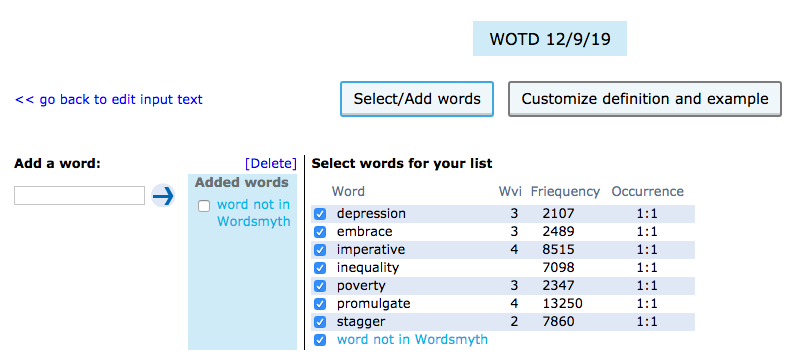
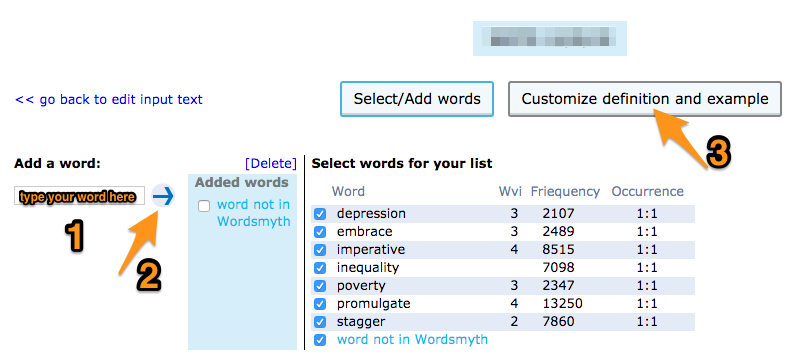
    Click “Customize” and add the word in the “Add a word” box. 

    You can also click “Preview and Save” and then click “Select/Add words” under the “Customization” menu. This will take you to the page with the “Add a word” box.

    On the Activities page, if you have a wordlist open, you can click “Preview” and this will take you to the Preview page where you can click the “Add/Select words” item under the “Customize” menu, which will take you to the page with the “Add a word” box.

    Since the word you added is not in Wordsmyth, it will be shown in light blue. Since we will not have definitions and examples ready to use in your activities, you will need to click “Customize definition and example” to add your own definition and example.

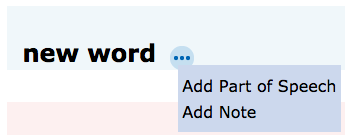
    In order to use your word in an activity, you need to first add a Part of Speech. Then you can add a definition. And, finally, after you have added a definition, you can add an example sentence. You can do this by clicking “Customize Definition and Example” in the top-right side of the page. Then hover over the 3 dots (…) and select “Add Part of Speech.” 

    In the pop-up box that appears, select a Part of Speech. This is required before adding a definition. 

    If you wish to add a definition, you can hover over the 3 dots after the part of speech you selected and an option to “add a definition” appears. Select this option and a text input box will appear, where you can type your definition.

    After the definition has been added, click “save.”  The definition will be saved in your personal dictionary, for use in your activities.

    If you wish to add an example, hover over the 3 dots after the definition you added and select “Add example.”

    After you add an example sentence and save it, the sentence will be available for use in the activities you make.

  • Introducing Grammatical Patterns!

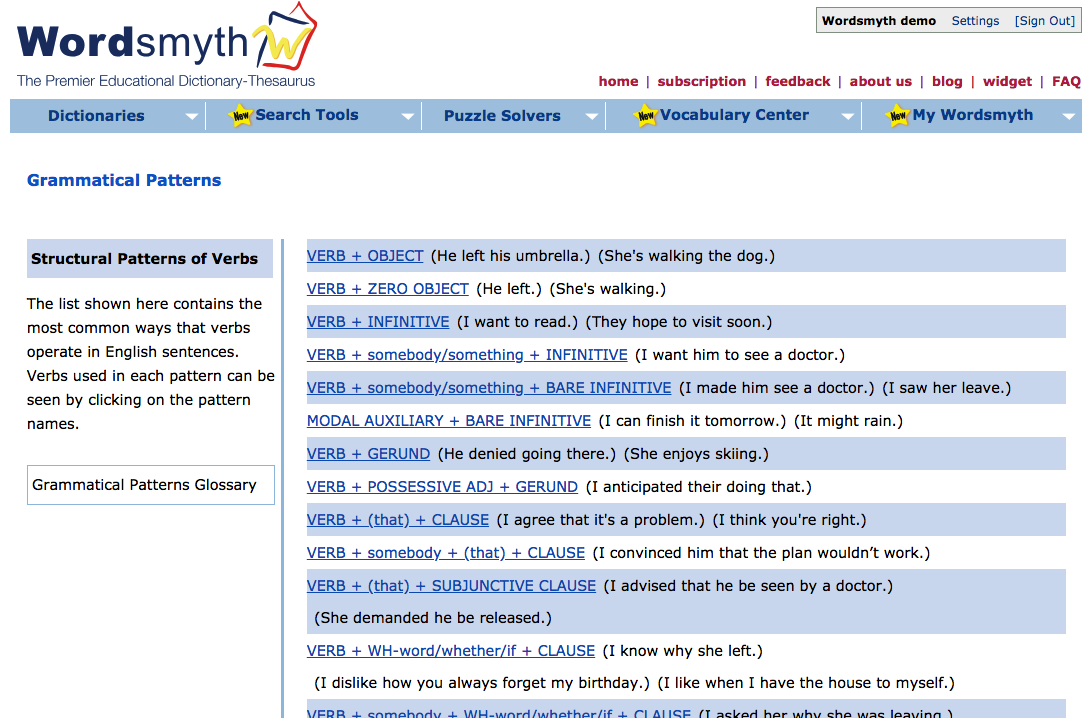
    The Grammatical Patterns feature offers a comprehensive guide to the structural patterns of verbs and is accompanied by a detailed yet easy-to-understand glossary of general grammatical terms that clarifies these concepts for both teachers and students. Future updates to the Grammatical Patterns feature will include pattern data relating to adjectives and nouns as well. Grammatical Patterns is a new subscriber feature. If you’re not currently a subscriber, take a look by signing up for a free 15-day trial.

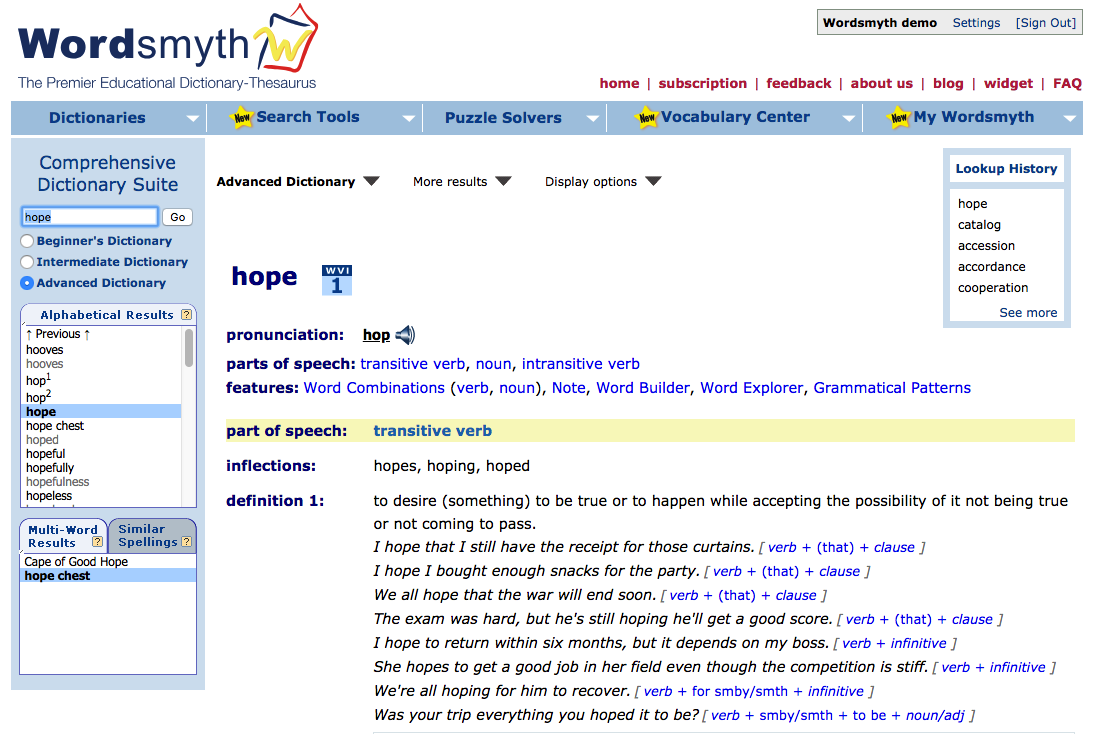
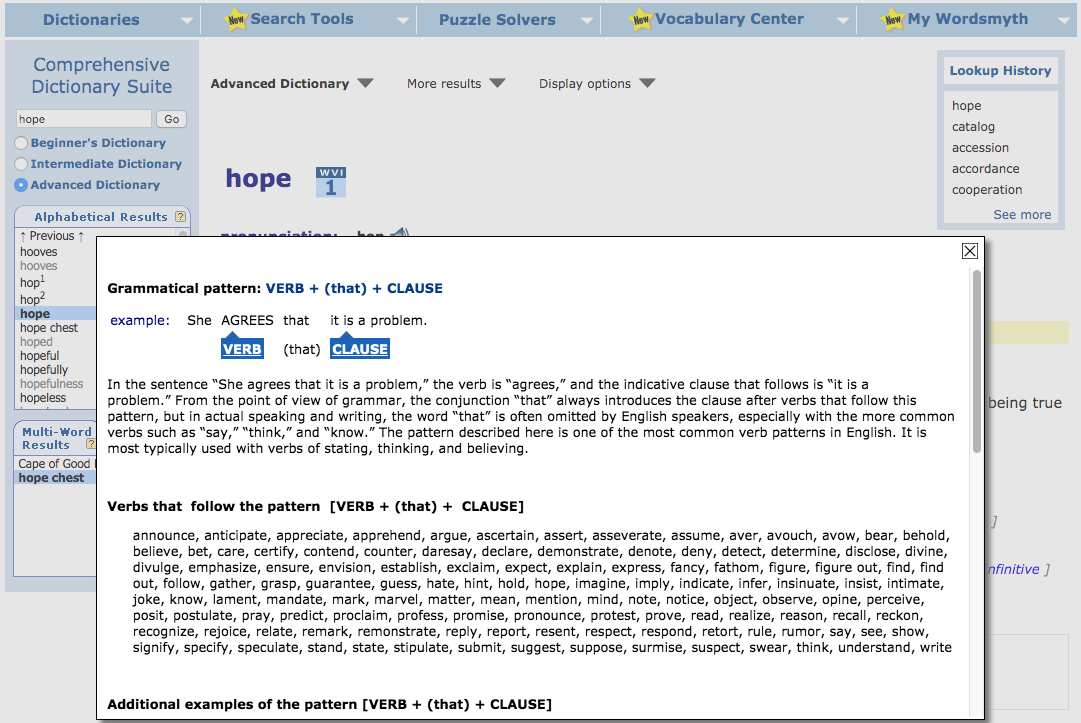
    Within individual dictionary entries, the grammatical patterns feature provides example sentences illustrating the particular patterns the entry word can be used in, and each example sentence is marked with the name of the pattern. Each pattern is linked to its description in the grammatical patterns guide, which can be accessed under Search Tools. The Grammatical Patterns guide provides a list of patterns that English verbs follow, and clicking on any of the patterns reveals verbs that follow each pattern, detailed descriptions of each of these patterns, and numerous usage examples.  


    The image below shows an example of how the grammatical patterns feature looks within a dictionary entry. The example shows the numerous patterns in which the verb “hope” can be used. The name of each pattern appears in blue after its example sentence. Don’t forget to turn on “Grammatical Patterns” in the display options in order to view the patterns.

    Once again, clicking on the name of a pattern, such as verb + (that) + clause, will take you directly to information about that pattern in the guide. Each pattern description identifies its parts, provides additional example sentences, and lists other verbs following the pattern.


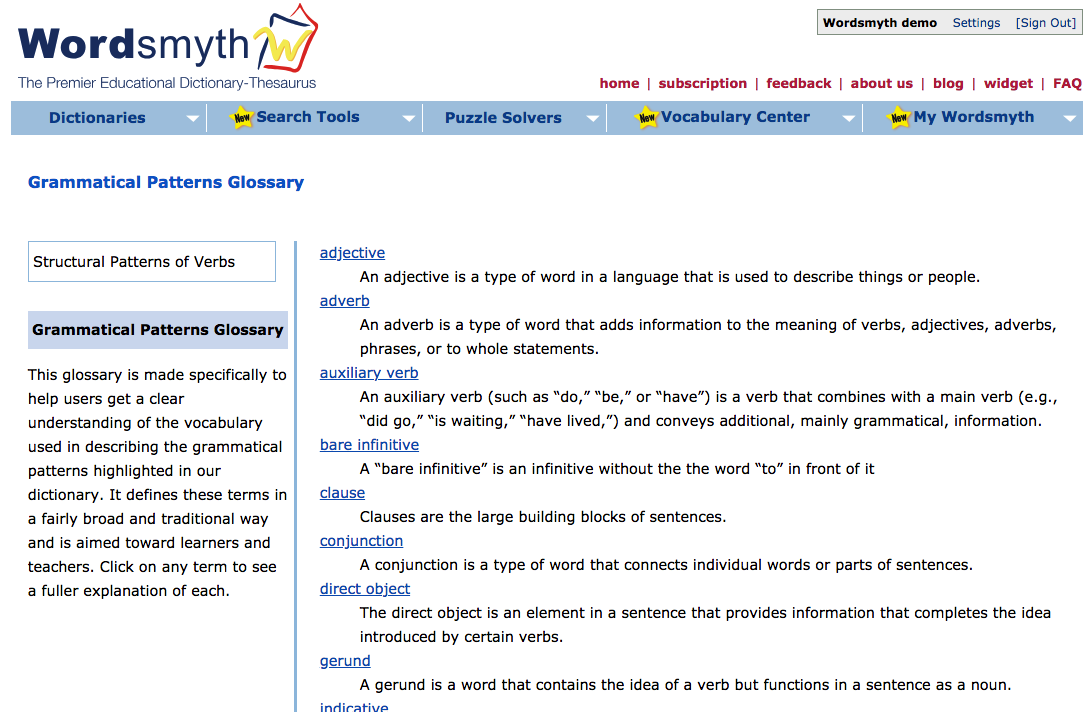
    Grammatical Patterns Glossary

    The Grammatical Patterns Glossary carefully defines all the grammatical terms used in the descriptions of patterns. Some topics covered include individual parts of speech, sentence components (e.g., “subject,” “object,” “clause”), and verb forms (e.g., “infinitive,” “participle”).

    The Glossary can also be used as a stand-alone guide by those interested in refining their understanding or teaching of grammatical terminology. Clicking on any highlighted term in the glossary list brings up a detailed explanation.


    The Grammatical Patterns feature demonstrates how specific words operate in a sentence and clarifies the ways in which English generally constructs sentences.

    Marking of grammatical patterns in entries is a subscriber feature. Subscribing also gives you access to the Word Parts and Word Combinations features, as well as Spanish and Chinese support within entries. You can review all these features with a free 15-day trial. If you’d like information on subscription, click here.

    Want to keep up with all things Wordsmyth? Check out our Facebook, Twitter, and blog. Get in touch with us on our feedback page if you have any questions.


  • What’s Your Favorite Word?

    Do you have a favorite word you’d like to share? Does this word mean something important to you? Is it politically relevant, or has it fallen into obscurity?

    At Wordsmyth, we want to encourage everyone to share their favorite words. So we created the  “My Favorite Word” program!

    (more…)
  • Announcing Word of the Year 2018!

    Wordsmyth is picking a Word of the Year for 2018, and we want you to help!

    Wordsmyth WOTY 2018 Instructions

    (more…)

  • How to s*rch the diction?ry using wild card symbols

    How to s*rch the diction?ry using wild card symbols

    Did you know that Wordsmyth’s dictionary search box permits the use of wild card symbols?  

    The question mark (?) and the asterisk (*)—these unassuming symbols are surprisingly powerful, as they can represent any letter or string of letters in a word. Understanding how to use them will increase your ability to find words you can’t spell or don’t fully recall. Wild card symbols also allow you to find groups of words that contain a particular letter pattern.

    The question mark 

    The symbol ? stands for any single character (letter or number). For example, if you search for “cat??” you will find all five-letter headwords that begin with “cat”: “catch,” “cater,” “catty [1]” and “catty [2]”. (“Catty [2]” is a unit of weight used in Southeast Asia.) Search for “???cat,” and you will find all six-letter words that end in “cat,” including “bobcat,” “fat cat” and “muscat” (a type of grape used to make wine). The query “c?a?t?” will return “coast” and “craft.” If you’re thinking this search mode sounds handy for solving word puzzles, you would be right. In fact, Wordsmyth has a Crossword Solver that tailors wild card searching for this specific purpose.

    The asterisk

    The symbol * stands for zero or more letters. For example, if you search for “cat*,” you will find all headwords that start with “cat,” including “catty,” “cater,” “catalog,” and “catabolism.”   If you search for “*cat*,” you will find headwords that contain “cat” in the middle, such as “application” and “beef cattle.” Because an asterisk can also represent zero letters, all these searches would also turn up “cat” itself.

    wild card search

    Pictured above is a query for words that start with and contain the letter “q.” Amusing, yes, but wild cards searches do also have applications in an educational context. Using wild card symbols, you can find all the words that contain a particular Latin or Greek root. Try *cept* or *graph* for example.

    With a little cleverness, you can also find words that you are not sure how to spell, or that you only remember part of.  For example, you might remember part of a word’s spelling, so you might enter “m*t*c*ond*ria” in the search box. You would find “mitochondria” because the first three asterisks match the letters”i,” “o,” “h,” respectively, while the fourth asterisk matches zero characters. There is no letter between the “d” and the “r” in “mitochondria.”

    When your goal is to find words rather than word meanings, the wild card search is a useful tool. To really become adept at finding the words you need in Wordsmyth dictionary, you will also want to familiarize yourself with Wordsmyth’s Reverse Search, Browse, and Multi-Word Results, which will be covered in future posts. We’ll leave you with a challenge using wild card symbols: find the word in the Wordsmyth dictionary that has the most number of letters in alphabetical order. And, finally, let us know to what fiendishly clever ends you have put the dictionary wild card search.

  • Look-up History

    Nothing brings home to me just how much mileage I habitually rack up on the information highway like a glance at my browser history. Whether it’s showing me locations I visited “last week,” “yesterday,” or even earlier “today,” the amount and the variety of the terrain covered is impressive. Many of the URLs that pop up in my browser history I’d forgotten ever having visited. Sometimes forgetting is good: here at my work computer, for example, history shows that, a few days ago, what started as a purposeful search on Project Gutenberg for literary uses of an unusual word (“tardigrade”) was diverted by one author’s reference to “hoof-shaped shoes” worn by the precursors of policemen in fifteenth-century Florence. Curiosity must have gotten the better of me, for apparently I made seven stops related to hoof-shaped shoes before getting back on track. Most of the time, however, I wish I hadn’t forgotten where I’d been and had kept more bookmarks and notes. What fruitful trails have I abandoned–or spent precious time rediscovering?

    A new feature in Wordsmyth, the dictionary look-up history, is designed to help you remember the paths you’ve taken through the dictionary-thesaurus and the words you’ve investigated for as long as you wish to. Your look-up history keeps track of which words you’ve looked up and when, and makes that information easily accessible to you whenever you visit Wordsmyth.  Here’s how it works. When you view a dictionary entry, as shown below, the last few words you’ve looked up will be visible in a box in the top right of the entry (indicated by the blue arrow). When there are more than five words in your look-up history, this box will display a link, “See more,” (indicated by the lower red arrow), which will take you to the full look-up history page. This page is also accessible from the tab menu My Wordsmyth: Look-up History (See the upper red arrow).

    Look-up history box in entry
    Look-up history box in entry


    On the Look-up history page each word you have looked up is listed in chronological order from newest to oldest. For each word, there is a complete record. n Moving from left to right across the columns, as shown in the image below, you will see 1) the word looked up, 2) the number of times the word was looked up on a given day (#), 3) the date on which it was looked up, 4) the first definition of the word and, in brackets, the number of definitions the word has, if more than one. Finally, 5) the Site column tells you which Wordsmyth site you used (Kids or Main), and, 6) if the Main site was used, the level of the dictionary you used (Beginners, Intermediate, or Advanced).

    Look-up history page
    Look-up history page

    View alphabetically or by date

    To faciliate finding particular words you may have looked up, the look-up history will display alphabetically if you click on the small blue triangle tot he right of the “Word” column heading, and chronologically if you click on the triangle to the right of the “Date” column heading.

    When your look-history is extensive, perhaps stretching over a number of pages, you can narrow down the words you see by using the drop down menu “Show words looked up” (a in the image above), choosing to see “all history,” “last 30 days”, last 7 days or 1 day, and clicking “find.” You may also enter a word or a date in the “Find a word or date” search box (b in the image above) and click on “Find” to view the page where a particular word or date appears.

    The Look-up History is very alert! It will record not only words you look up using the general search box, but also synonyms, similars, and antonyms you click on, was well as Word Explorer words. However, you can clear your history by clicking on the blue [Clear] link (c). And you can hide the lookup history box in the Display options menu that appears on the entry page.