Author: Wordsmyth

  • Educational Group Subscription FAQ

    Educational Group Subscription FAQ

    • How does the educational group subscription work?

    The Educational Group Subscription provides premium features through a unique school URL. After the payment transaction is completed, you will receive a confirmation email with a link to your school start page (www.wordsmyth.net/school/yourschoolname/start). Through the start page, all group subscription users will be able to make use of Wordsmyth’s premium educational features, including Teacher Tools that allow educators to interact with their students. In other words, each subscription is given its own start page and each teacher or student can use this start page to get access to subscription privileges.

    We recommend bookmarking your school start page or adding the URL as a link on your school’s website.

    • How do additional users register for subscription privileges?

    Educators in addition to yourself are required to register in order to use Teacher Tools and save data, such as wordlists and lessons. After registration, all users own their personal account. Users can log in on Wordsmyth sites or with the school URL. In other words, a user’s personal data will go with them wherever they are.

    Students are not required to register (i.e., make an account) with Wordsmyth. Students have full access to subscription features through the school start page without logging in. However, when a teacher sets up a class and gives assignments to the class, students need to register for that class. Class registration is extremely simple–only the student’s name is required. This is just so that the teacher can identify each individual student in their class. Wordsmyth does not collect students’ personal information.

    • Will my students and I be able to use our Wordsmyth Group Subscription from home?

    Yes, you and your students can also use your subscription privileges from home, or anywhere with internet access. As long as a user can open the school start page, all Wordsmyth subscription features will be available.

    • What if I already have a Wordsmyth account?

    If you already have an account with Wordsmyth, (i.e., you have previously registered with Wordsmyth), you can log in with your existing account information on your school URL. We encourage you to keep only one Wordsmyth account. If you move to a different school, your saved data will go with you as long as there is a group subscription.

    • If I log in from the standard Wordsmyth URL (www.wordsmyth.net), will I be able to use the educational group subscription features?

    The short answer is “no.”

    On your school URL, all teachers and students form an “educational group” who collectively enjoy the group subscription. On the Wordsmyth standard URL (wordsmyth.net), if you are the contact person of the Educational Group Subscription, you will have subscription privileges as an individual user. However, students and any other users will not have subscription privileges when logging in from the standard Wordsmyth URL.

    To access Educational Group Subscription features, be sure to log in with your school URL.

    • What happens if I use the school page without logging in?

    If you use the school page without logging in, the site will be ad-free with full access to premium dictionary features. However, you will not be able to use Teacher Tools, and you will not be able to save any data, such as wordlists or lessons you’ve created.

    • How can I cancel my group subscription?

    You can click the cancel button on the subscription page while your subscription is active. Also, in your account settings, under the subscription tab, you will find the same “cancel” button.
    After you cancel the current subscription, you will have subscriber privileges until the end of the subscription. The subscription will not be renewed after the expiration date.

    • How can I change the number of users?

    You can change the number of users for the upcoming subscription period. Please note the change will not take effect during the current subscription period.

    The best time to change the number of users is when your subscription comes up for renewal. (You will receive an email reminder at renewal time.) To add new users, you need to first cancel your current subscription and then re-subscribe. The process is very simple! On the subscription page, click the “cancel subscription” button and confirm the cancellation. On the same page, there is a “Subscribe now” button available. Click it and you will see all your contact and school information prefilled and your school URL unchanged. Now you can change the number of users. Of course, if you need to change your contact information or school URL, you can do so as well.

    If you are not completely sure about the number of users, please include a few additional slots when you subscribe.

    • What happened to the Title I school financial aid program?  

    The Title I school financial aid program has been discontinued. We are glad that we were able to support Title I schools with a free subscription in the past, but inflationary pressures have made our continued development dependent on support from all of our users. And we will continue to offer the lowest cost premium services available anywhere online or in print. 

  • Wordsmyth Educational Group Subscription

    In addition to offering all users access to Wordsmyth’s premium dictionary features and vocabulary tools, the Wordsmyth Educational Group Subscription is designed for educators to manage and interact with students using Teacher Tools.

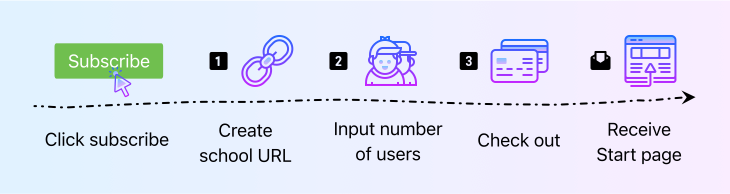
    3 easy steps to set up educational group subscription

    Step 1: Generate school URL

    Your school URL is automatically generated with your school name. You can edit it according to your preference. This unique URL will be used to create a start page for your educational group to access subscription features.

    Optional Group Subscription settings:

    The special URL allows you two optional settings that some educators and school administrators find useful. Just ignore these if the options don’t apply to your situation.

    • Control the dictionary settings for all users
      This option gives your account sole control of the dictionary settings for all those who will be using this URL. Leave this box unchecked if you prefer for each user to control their own dictionary settings. You can always change it later.
    • Integrate with SAML Single SignOn
      If SAML Single SignOn is a preferred option for your organization, please contact your IT personnel to set it up after completing subscription. Learn more about how to set up SAML integration.

    Step 2: Confirm the number of users

    Educational groups come in different sizes and are created for different purposes. Wordsmyth Educational Group Subscription allows you to choose how many users you want to subscriber for. Here are some examples to help you understand and choose the case that best fits your situation:

    Case 1: A kindergarten teacher wants her 15 students to use WILD on their iPads. She also wants the subscription to cover her assistant teacher. The number of users would add up to 17. Since this is less than 20 users, the minimum charge of $20 will apply. She can go ahead and check out.

    Case 2: A middle school principal would like to use Wordsmyth for the whole school, 35 teachers and 400 students. He will put in 435 users.

    50 X $1 = $50;
    350 X $0.75 = $262.5;
    35 X $0.5 = $17.5;

    total = 50 + 262.5 + 17.5 = $330/year

    Of course, the calculator will do all the calculations for him. All he needs to do is input the number of users.

    Step 3: Check out

    You can pay with your Paypal account or credit card online. If you need to pay by purchase order or check, please contact us.

    In case you can’t complete the payment right away, the URL will continue to be available to you as a 15-day trial. Anytime within this period, you can go ahead and finish the subscription process. No need to start over.

    School start page provides easy access for all users

    As soon as the payment transaction is complete, you will receive a confirmation email with a link to your school start page, through which you and your other users can get access to all subscription features.

    Wordsmyth dictionary sites

    Class List

    The classes created under your school URL will be listed on the start page for your students’ easy access.

    Help Center

    The Help Center offers more information for using Wordsmyth tools and resources to their best potential. There are also help documents in case you have any trouble navigating the Wordsmyth educational environment.

  • Edit your Wordsmyth account info

    We advise our users to have only one account with Wordsmyth. Your account information can be edited very easily when needed. Registering multiple account would likely cause confusion in the future.

    Change email address

    1. Go to your account settings

    2. As you can see, all account info fields are editable. Simply click [Edit] next to your email address.

    3. Type in the new email address you want to change to. You can change Screen name and Login shortcut as well. To save your change, type in your current password and click “Save” button.

    Change password

    After you reset your password, we always recommend you change the system generated password to something more memorable. You may want to change your password for other security concerns.

    1. In your account settings, under the “Account Info” tab, click [Edit] next to password field.
    2. Type in new password twice and make sure the two inputs are identical.
    3. To save your change, type in your current password and click “Save” button.
  • Wordsmyth for Educators: Parts of Speech

    Wordsmyth for Educators: Parts of Speech

    Explaining parts of speech for young children

    The Wordsmyth Illustrated Learner’s Dictionary (WILD) is adding a new collection–Parts of Speech–to its Language collections. With fully animated explanations, now you can help your students get a clear and basic understanding of concepts such as noun, adjective, verb, or adverb. Here is a quick peek:

    The full Parts of Speech collection will be available in WILD this summer. Watch for it in the Collections under the Language category. While waiting, subscribe and check out the amazing features already in WILD such as the following:

    And so much more…

    Helping older children understand part-of-speech concepts as well as how to use a dictionary

    The Wordsmyth Children’s Dictionary, designed for upper elementary students, offers simply-written but slightly expanded definitions of the different parts of speech, which can be accessed by clicking on the part of speech labels that are listed for any particular word in the dictionary—the word “plant” for example, has various definitions for “plant” as a noun and “plant” as a verb.  Clicking on the Part of Speech label for “noun” or the Part of Speech label for “verb” will bring up animated explanations of these concepts.  Understanding of the parts of speech, besides being important for language and academic development generally, is important for understanding how a dictionary functions, as they are key to the way dictionaries organize and present information about a word.  As words tend to have multiple meanings, understanding the parts of speech will help children locate the particular sense of the word they are looking for when they use a dictionary by themselves.

    And now, for your convenience, we’ve gathered all the explanations of Parts of Speech contained in the Children’s Dictionary into one post in our blog!  It’s called “Parts of speech explained for grades 3 to 6,” and it’s there to support you in your teaching of these important concepts.

    Advanced support for teaching ESL students and older students the parts of speech and related concepts

    A unique feature called Grammatical Patterns in the Advanced level of the Comprehensive Dictionary provides even more support for ESL students and teachers.  In addition to offering a guide to verb constructions in English, the feature offers a glossary of grammatical terms, which are explained in quite simple language but go into a fair amount of detail in order to answer often-ignored questions about parts of speech and other fundamental grammatical concepts (such as “clause,” “phrase,” “direct object,” “participle,” “gerund,” etc.). These are truly a must-read for teachers!  Click here for a look in our blog to see how the grammatical patterns feature explains the parts of speech. We also hope you will look at the additional comprehensive offerings we have in the Grammatical Patterns Glossary. We’re sure you will enjoy exploring all the topics!

  • Using the Reverse Search Tool

    Using the Reverse Search Tool

    What is reverse search?

    “Reverse search” is an advanced search tool that allows you to search within the full text of the dictionary for words, word parts, or phrases that may be useful to you, either in finding a word for a meaning you have in mind or in finding a pool of words for writing inspiration or assignments. A typical way of using the reverse search feature in Search Tools is to search for words that have the search term in their definitions or example sentences. Just type the word in the search box provided and choose between the listed options for searching. Typing in “oil,” for example, can help you find words like “anoint,” “cottonseed,” “crude,” “deep-fry,” “diesel,” and “pesto.” Or let’s say you type in “Latin.” This can help you find all the examples of Latin phrases included in the dictionary (as well as other words with definitions and examples that simply include the word “Latin.”) Next to each item in the search results is its definition, or the first of its definitions. This can help you evaluate the usefulness of your search results. Moreover, you can click on any item in the results list to go to its entry. This can be very helpful in finding additional synonyms and related words.

    Why do I need reverse search?

    “Hmm… I know the idea I want to express, but I can’t think of what the word for it is.”

    You probably have moments like this now and then when you are writing. Reverse search can be useful for finding the word that matches the idea you have in mind. Let’s say you are thinking of a meaning that is a special type of happiness. You could look up the word “happiness” in the regular dictionary search box and find synonyms, of course, but the word you’re looking for might be somewhat more specialized. Instead of using just the thesaurus, you could broaden your search using reverse search so that you could find all definitions that contain the word “happiness,” AND, by selecting additional fields in which to search, you could find a great number of words that relate to the idea of happiness. Perhaps the word you were looking for was the word “mirth” or “beatitude,” or “seventh heaven.” Reverse search would be the way to find these items.

    For teachers, reverse search can be a great tool for coming up with a pool of words to organize a lesson around or to help students write about a particular topic. Let’s say the students are learning about volcanoes. You could use reverse search to find words like “magma,” “lava,” “erupt,” “dormant,” “extinct,” “active,” “explode,” “caldera,” “crater,” “cinder,” “tsunami,” and many others. (These words were found by entering “volcano” and “volcanic” into the search box and then clicking on “definition” and “example.”)

    How do I use reverse search?

    If you click on Reverse Search under Search Tools, you’ll be taken to a special page. The Reverse Search page contains explanations of all the kinds of searches you can perform.

    The reverse search tool lets you search for any word, part of a word, or set of words within the text of definitions or other dictionary fields. In addition to searching within definitions and example sentences, you can find words within the synonym, similar, antonym or “related words” fields. Moreover, you can choose which dictionary or dictionaries you wish to search within. Choosing one of the lower level dictionaries is probably best for younger students, as the Advanced Dictionary may bring up far too many words to sift through, including words that are homographs with completely unrelated meanings to your search term. (For creating a pool of words for younger children, we might suggest using the Word Explorer tool rather than reverse search, however. Words listed under Word Explorer topics have been specially selected because they are, in fact, related to the topic, and they are related in clearly specified ways. They are not selected by an automated process as is reverse search.)

    Reverse Search works best when the search parameters are not too limited. For example, if you want to find words related to sharks (the fish), you may be disappointed if your search term is only “shark.” This is because there are not too many words in the dictionary that have “shark” in their definition, and there may not be a large number of example sentences that use the word “shark” either (not as a fish at least). Moreover, few, if any, words have “shark” as a synonym or antonym. It would be better to search for a more general concept like “fish” or expand the search terms to something like “fish shark” and set the tool simply at “Word(s)” so that it will look for either the word “shark” or “fish.” Moreover, it can be helpful to click “example” because this will bring up useful additional words that have the search terms in their example sentences. By using the search terms “fish shark” and clicking on “example,” you will allow the tool to bring up words like “bony,” “hunt,” “saltwater,” “scaly,” “deepwater,” “reel, and “prey,” which do not contain either “fish” or “shark” in their definitions. Notice that this type of search also includes a greater number of words of a different part of speech from the search terms.

    Reverse search is just one of the tools that Wordsmyth offers its users to help them find the right word or the particular set of words they are looking for. We know it can be helpful for certain types of searches, but we are also aware that it has its limitations. If you can think of ways that we might improve the tool, or, on the other hand, if you discover ways that the tool has been uniquely helpful to you, we’d appreciate your feedback.

  • Children’s Dictionary: Map of an Entry

    Children’s Dictionary: Map of an Entry

    • Look-up box: To look up a word, type it in the search box and click Go or hit Enter on your keyboard.

    • Default dictionary levels: the Elementary Dictionary is for grades 3-5, the Intermediate Dictionary is for grades 6-8.

    • Alphabetical Results: Here are words and phrases that appear alphabetically before and after your search word. Those in the list that are headwords are in dark gray, and words that are derived or inflected forms of headwords are in light gray. Double click on a word or phrase in the list to go to its entry.

    • Multi-Word Results: If there are phrases or compound words that include the word you have looked up, they will appear in Multi-Word Results.

    • Similar Spellings: Click on the Similar Spellings tab to see other headwords that are close in spelling to the one you looked up.


    Entry display options

    • More Results: The More results menu, located above the headword, provides three further options for getting information from your search. Show multi-word results shows phrases and compounds that contain the entry word, along with the first definition for each. Browse in word list shows the word in the middle of the dictionary word list so you can see the words coming before and after it. The third option, See entries that contain…, shows a list of entries using your looked-up word in their definitions.

    • Display Options: Several display features can be controlled in your settings panel. (If you are signed in, you will see the Settings link in the top right corner of the page.) In addition, the Display options menu located on the entry page allows you to change existing settings right in the entry itself. The options include:

    • Show Syllables (displays how words are divided in writing)
    • Show Lookup History
    • Double-Click Lookup (allows double-clicking on any word in a definition or example sentence to go to that entry)
    • Show Word Parts (allows the user to see the roots and affixes that make up the headword and gives additional information)
    • Show Spanish Support/Show Chinese support (translates headwords and examples sentences)
    • Pronunciation (allows choice of pronunciation systems. Options are Wordsmyth pronunciation system, Phonics, and International Phonetic Alphabet)
    • Entry Formats (offers options of “Standard” or “Classic”)

    • Lookup History: If you have chosen to display your lookup history on the results page, the last five words you have looked up will be displayed in this box, along with an option to see more looked-up words along with definitions.


    Entry

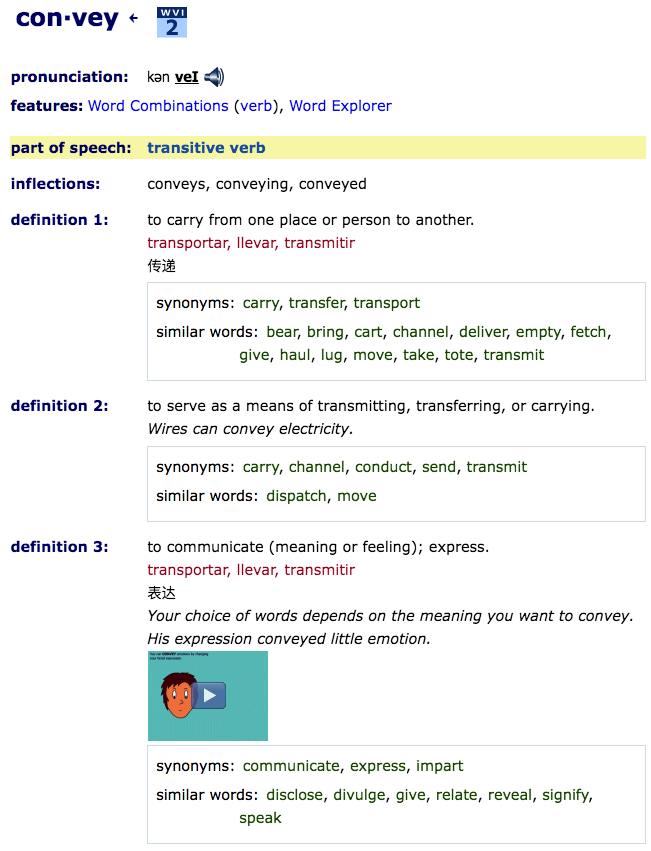
    • Headwords: Words that have an entry in the dictionary are called entry words or headwords. They always appear at the top of the entry in large blue letters. Dots are used in entry words of more than one syllable to show how the word is divided in writing. The blue arrow next to the syllabified word allows you to turn syllabification on or off.

    • WVI label: Words that are part of the Wordsmyth Vocabulary Inventory are marked with a label that shows what level they have been assigned to. Levels range from 1 to 5, with 5 being the most advanced.

    • Pronunciation: Headword pronunciation is provided using both written phonemic symbols and human-voiced audio recordings. Clicking on the speaker icon allows you to hear the headword pronounced, and clicking on the word “Pronunciation” provides you with an explanation of the particular pronunciation system being used to display the written symbols—Wordsmyth, Phonics, or IPA. (The pronunciation system shown is the one that has been selected in your display settings.)

    • Features: The features list shows the particular special features, such as Word History, Word Explorer, and Word Parts that accompany the word’s entry. Clicking on a feature’s name will lead you down the entry to the feature’s location.

    • Part of Speech: The Part of Speech label indicates the way, or one of the ways, that a headword can be used in a sentence—for example, as a noun, transitive verb, intransitive verb, or adjective. In any entry, click on the Part of Speech label (in dark blue) to see an animation explaining what a part of speech is in general. Click on the name of the part of speech listed next to the label (in light blue) to see an explanation of that particular part of speech.

    • Inflections: The inflections field shows the different forms that a headword can take—forms such as “eats,” “eating,” “ate,” and “eaten”—which make up the inflections for the verb “eat.” In any entry, click on the Inflections label (in dark blue) to learn more about what “inflections” are and how Wordsmyth displays them.

    • Definitions and Examples: A definition is an explanation of what a word means. Each word may have several meanings, also called “senses,” depending on how the word is used. The definitions in the Intermediate Dictionary are written simply and are somewhat concise. Definitions in the Elementary Dictionary use full-sentences and are more explanatory. They tend to be somewhat longer but are highly readable for younger readers. The examples below the definition show typical usage of the word. Examples demonstrate both the meaning and the grammatical context that the word is typically found in. Examples are always in italic type.

    • Images and Animations: Thumbnail images are shown beneath the definition and example sentence. Clicking on a thumbnail will enlarge it. Some images are photographs and some are illustrations done by Wordsmyth artists.

    • Synonyms and Antonyms: Synonyms are different words whose meanings are the same or almost the same as each other. Antonyms are words whose meanings are the opposite or nearly the opposite. Synonyms and antonyms are listed with the definitions of a headword with which they match. Click on any synonym or antonym (in green) to see its entry and compare usage.

    Derivations: The Derivations field shows words that are derived from the headword, such as “heaviness” from the headword “heavy” and “agreeably” from the headword “agreeable.” Bear in mind that many words that are derived from headwords may not be listed as derivations as they have their own individual entries in the dictionary.

    Special features

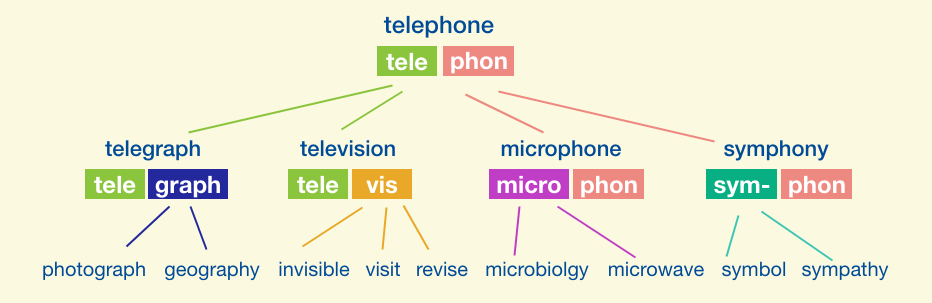
    • Word Parts:  The Word Parts feature shows the headword broken down into its roots and affixes. Each significant word part is identified and its origin, type, and meaning provided. You can also view a list of other example words containing the word part and jump to those words’ dictionary entries to explore further. 

    • Language Notes: There are four kinds of language notes: Word History, Usage Note, Homophone Note, and Word Builder. These notes appear with a yellow background toward the end of the entry. In some cases, a word has more than one language note.

    • Word Explorer:  Word Explorer is a word finder and vocabulary exploration tool. Several thousand words in the dictionary have Word Explorer information.  These entries are linked with a main Word Explorer entry (a “keyword” such as “art,” “weather, or “energy”). The headword “easel,” for example, would refer you to the keyword “art.” The Word Explorer keyword entries display related words in categories, e.g., words that describe kinds of art, things used in art (such as an “easel”), people who make art, places for art, etc. Word Explorer is an especially useful tool for children writing on a particular topic, as it sparks ideas for what they may want to say and provides them with needed vocabulary. 

  • Comprehensive Dictionary: Map of an Entry

    Comprehensive Dictionary: Map of an Entry

    • Look-up box: To look up a word, type it in the search box and click Go or hit Enter on your keyboard.

    • Default Selection: Click on the radio button next to the dictionary you want us to check first when searching for a word. This will be your default level. If you want to see entries that contain easy-to-read definitions and the smallest number of definitions for each word, select “Beginner’s Dictionary.” If you want to see entries that contain more advanced language and the greatest number of definitions for each word, select “Advanced Dictionary.” (After you select your default level, you can still navigate between levels if you want to see more or less advanced definitions for a particular word that you’ve looked up. This will not change your default.)

    • Alphabetical Results: Here are words and phrases that appear alphabetically before and after your search word. Those in the list that are headwords are in dark gray, and words that are derived or inflected forms of headwords are in light gray. Double click on a word or phrase in the list to go to its entry.

    • Multi-Word Results: If there are phrases or compound words that include the word you have looked up, they will appear in Multi-Word Results.

    • Similar Spellings: Click on the Similar Spellings tab to see other headwords that are close in spelling to the one you looked up.


    Entry display options

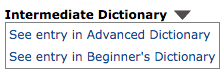
    • Dictionary menu: This gives you the option to see the entry for the word you looked up in one of our other dictionaries, at a different level of writing.

    • More Results: The More Results menu provides three further options for getting information from your search. Multi-Word Results shows phrases and compounds that contain the entry word, along with the first definition for each. Browse in word list shows the word in the middle of the dictionary word list so you can see the words coming before and after it, along with their definitions. The third option, See entries that contain…, shows a list of entries using your looked-up word in their definitions.

    • Display Options: Several display features can be controlled in your settings panel. (If you are signed in, you will see the Settings link in the top right corner of the page.) In addition, the Display options menu on the entry page allows you to change existing settings in the entry itself. The options include:

    • Show Syllables (displays how words are divided in writing)
    • Show Lookup History
    • Double-Click Lookup (allows double-clicking on any word in a definition or example sentence to go to that entry)
    • Show Grammatical Patterns (reveals the patterns verbs follow as demonstrated in their example sentences and provides links to more information on the patterns)
    • Show Word Combinations (shows words that often combine with the word you looked up)
    • Show Word Parts (allows the user to see the roots and affixes that make up the headword and gives additional information)
    • Show Spanish Support/Show Chinese support (translates headwords and examples sentences for intermediate level words)
    • Pronunciation (allows choice of pronunciation systems. Options are Wordsmyth pronunciation system, Phonics, and International Phonetic Alphabet)
    • Entry Formats (offers options of “Standard” or “Classic”)

    • Lookup History: If you have chosen to display your lookup history on the results page, the last five words you have looked up will be displayed in this box, along with an option to see more looked-up words along with definitions.


    Entry

    • Headword: Words that have an entry in the dictionary are called entry words or headwords. They always appear at the top of the entry in large blue letters. Dots are used in entry words of more than one syllable to show how the word is divided in writing. The blue arrow next to the syllabified word allows you to turn syllabification on or off.

    • WVI label: Words that are part of the Wordsmyth Vocabulary Inventory are marked with a label that shows what level they have been assigned to. Levels range from 1 to 5, with 5 being the most advanced.

    • Pronunciation: Headword pronunciation is provided using both written phonemic symbols and human-voiced audio recordings. Clicking on the speaker icon allows you to hear the headword pronounced, and clicking on the word “Pronunciation” provides you with an explanation of the particular pronunciation system being used to display the written symbols—Wordsmyth, Phonics, or IPA. (The pronunciation system shown is the one that has been selected in your display settings.)

    • Features: The features list shows the particular special features, such as Word Combinations, Word Explorer, and Word Parts that accompany the word’s entry. Clicking on a feature’s name will lead you down the entry to the feature’s location.

    • Part of Speech: The Part of Speech label indicates the way, or one of the ways, that a headword can be used in a sentence—for example, as a noun, transitive verb, intransitive verb, or adjective. In any entry, click on the Part of Speech label (in dark blue) to see an animation explaining what a part of speech is. Click on the name of the part of speech listed next to the label (in light blue) to see an explanation of that particular part of speech.

    • Inflections: The inflections field shows the different forms that a headword can take—forms such as “eats,” “eating,” “ate,” and “eaten”—which make up the inflections for the verb “eat.” In any entry, click on the Inflections label (in dark blue) to learn more about what “inflections” are and how Wordsmyth displays them.

    • Definitions and Examples: A definition is a short explanation of what a word means. Each word may have several meanings, also called “senses,” depending on how the word is used. The example sentence or phrase below the definition shows a typical usage of the word. Examples consist mostly of full sentences and demonstrate both the meaning and the grammatical context that the word is typically found in. Examples are always in italic type.

    • Images and Animations: Thumbnail images are shown beneath the definition and example sentence. Clicking on a thumbnail will enlarge it. Some images are photographs and some are illustrations done by Wordsmyth artists. Illustrations and animations are geared toward children but are still helpful for older learners.

    • Synonyms and Antonyms: Synonyms are different words whose meanings are the same or almost the same as each other. Antonyms are words whose meanings are the opposite or nearly the opposite. Synonyms and antonyms are listed with the definitions of a headword with which they match. Click on any synonym or antonym (in green) to see its entry and compare usage.

    Derivations: The Derivations field shows words that are derived from the headword, such as “heaviness” from the headword “heavy” and “agreeably” from the headword “agreeable.” Bear in mind that many words that are derived from headwords may not be listed as derivations as they have their own individual entries in the dictionary.


    Special features

    • Word combinations: The Word Combinations feature displays words that are frequently used in combination with the headword you looked up. The sets of words that are shown in this field can help you find a word that is correct or appropriate to complete a particular meaning that you intend.

    • Word Parts:  The Word Parts feature shows the headword broken down into its roots and affixes. Each significant word part is identified and its origin, type, and meaning provided. You can also view a list of other example words containing the word part and jump to those words’ dictionary entries to explore further. 

    • Grammatical Patterns: (in Advanced Dictionary only) The grammatical patterns feature allows you to see what patterns a headword verb follows. Example sentences that demonstrate a pattern are marked with the name of that pattern, and clicking the pattern name will open up a more detailed explanation of the pattern, along with a list of other words that function in the same way and links to our full grammatical patterns list.

    • Language Notes: There are four kinds of language notes: Word History, Usage Note, Homophone Note, and Word Builder. These notes appear with a yellow background toward the end of the entry. In some cases, words have more than one language note.

    • Word Explorer:  Word Explorer is a word finder and vocabulary exploration tool. Several thousand words in the dictionary have Word Explorer information.  These entries are linked with a main Word Explorer entry (a “keyword” such as “art,” “weather, or “energy”). The headword “easel,” for example, refers you to the keyword “art.” The Word Explorer keyword entries display related words in categories, e.g., words that describe kinds of art, things used in art (such as an “easel”), people who make art, places for art, etc. Word Explorer is an especially useful tool for children writing on a particular topic, as it sparks ideas for what they may want to say and provides them with needed vocabulary.

  • Wordsmyth News

    Wordsmyth News

    Wordsmyth dictionaries have been updated!

    Wordsmyth updates its dictionaries every year with new entries, additional example sentences for existing entries, new images, and additional animations. This year we’ve also continued to expand our coverage of phrasal verbs and idioms in our dictionaries, and these improvements will be reflected in this update.

    Subscribe to get access to the full features of all 3 dictionaries:

    And so much more…

    Wordsmyth feature highlight: Word Parts

    The study of word parts (roots and affixes) is an important tool used by teachers and individual language learners to boost vocabulary learning.  Wordsmyth Word Parts is one of the most popular features of our dictionaries. We’ve recently put together a series of blog posts to support learners and educators in making the best use of Wordsmyth word parts data and related features. So far, there are five posts in the series:

    Wordsmyth word parts database user guide
    Word Parts I: basic roots
    Word Parts II: basic suffixes
    Word Parts III: Intermediate level suffixes
    Word Parts IV: basic prefixes

    We’ll be continuing to provide more supportive materials for Word Parts and other Wordsmyth features. Stay tuned!

    Response to User Feedback: improved print function in activities

    In response to requests from long-time users, we are in the process of extending the full print functionality of our legacy activities to our new Vocabulary Center activities. The first activity we have extended the functionality to is Multiple Choice. Now if you click on the print button inside the Multiple Choice activity, you will see a print page that allows you to set the page border, adjust the font size, randomize the order of the questions, and more. You can also save the print as a PDF using the browser print option.

    Please check out the Multiple Choice activity and give us your feedback by taking a short survey. This will help us tailor the print functionality to your needs. Thank you!

    Happy Wordsmything!

  • Activity print function improvement survey

    In response to requests from long-time users, we are in the process of extending the full print functionality of our legacy activities to our new Vocabulary Center activities. The first activity we have extended the functionality to is Multiple Choice. Now if you click on the print button inside the Multiple Choice activity, you will see a print page that allows you to set the page border, adjust the font size, randomize the order of the questions, and more. You can also save the print as a PDF using the browser print option.

    Please check out the Multiple Choice activity and give us your feedback by taking a short survey. This will help us tailor the print functionality to your needs.

  • Wordsmyth’s Word Parts Database

    Wordsmyth’s Word Parts Database

    The importance of learning Word Parts (roots, prefixes, and suffixes)

    Studying word parts equips us to do the following:

    • Identify the meaningful elements that make up words.
    • Learn the characteristics of roots and of affixes, their origin, meaning, and grammatical function.
    • Guess (or recall) the meaning of unfamiliar words from the clues given by word parts.
    • Recognize the relationship among words that share a common root or affix.
    • Recognize patterns among changing word forms (e.g., -cept, -ceive).
    • Improve spelling by gaining awareness of the internal logic of words.
    • Increase vocabulary, cultivate morphological awareness, and have fun discovering some of the interesting ways the English language works.

    For a general introduction to the terms and concepts used in our Word Parts database, see this downloadable pdf . Access to the Word Parts feature comes with your Wordsmyth subscription or a 15-day free trial.

    Three ways to view the Word Parts data

    1. Dictionary entries:

    More than 8000 Wordsmyth dictionary entries now display information about the word parts that make up the headword. In the new Word Parts section of the entry, the headword is broken down into its roots and affixes.

    Each significant word part is identified, and its origin, type, and meaning are provided. The user can also view here a list of other example words containing the word part and jump to those words’ dictionary entries to explore further. “More about this word part” notes explain in more detail how particular affixes combine with bases to form words.

    abstain wp

    2. A-Z Word Parts Page:

    In addition to the Word Parts feature appearing in individual dictionary entries, where the composition of a word can be studied in the context of looking up a particular word, the user can search, sort, and browse more than 600 roots and affixes on the A-Z Word Parts page. This page can be accessed from the Search Tools menu.

    3. Search Filters:

    Finally, for a list of all the words in the dictionary that contain word parts information, the user can go to the Search Filter page (under the Search Tools menu), select “Word parts information” under “Entries with special features,” and click “Set filter.”  This takes the user to a page that displays the list of words in an alphabetical, browsable format. 

    Word Parts Data in the Word Explorer Children’s Dictionary

    Users of the Word Explorer Children’s Dictionary have these same three modes of access to roots and affixes information but with the example words limited to the headwords in the Children’s Dictionary. To maximize flexibility, there are links to the complete Word Parts Database from any point in the Children’s Word Parts data. In the case of roots and affixes that have no example words in the Children’s Dictionary, the word part and information about it can still be found in the Children’s Dictionary A-Z Word Parts look-up. 

    See also:
    Word Parts I: basic roots
    Word Parts II: basic suffixes
    Word Parts III: Intermediate level suffixes
    Word Parts IV: basic prefixes