At Wordsmyth.net, we are dedicated to empowering young learners with tools that enhance their understanding of language and the world around them. Our latest addition, the Elementary Children’s Dictionary, has transformed our original Children’s Dictionary into a comprehensive leveled suite designed for students from elementary school through middle school. This blog post introduces the suite and highlights its features, benefits, and educational value.
What is the Wordsmyth Children’s Dictionary Suite?
The Wordsmyth Children’s Dictionary Suite is a multi-level dictionary system tailored to meet the needs of learners across different age groups and grade levels. It provides a seamless experience for children to explore words at a level appropriate to their vocabulary skills while offering flexibility to move between levels for deeper understanding.
Here’s an overview of the suite:
Elementary Children’s Dictionary: Ideal for grades 3-5, this newly released dictionary features simple, full-sentence, explanatory definitions; child-friendly example sentences; vibrant illustrations; and photos.
Intermediate Children’s Dictionary: Perfect for grades 6-8, this dictionary includes over 35,000 entries covering essential vocabulary across subjects like science, social studies, emotions, and everyday life.
If a word is not found in these dictionaries, learners can access entries from the Wordsmyth Advanced Dictionary, which contains over 100,000 entries, and which are filtered for age appropriateness using a parental control feature.
Key Features of the Elementary Children’s Dictionary
The newly released Elementary Children’s Dictionary is a key addition to Wordsmyth’s leveled dictionaries. Specifically designed for students in grades 3 to 5, it becomes the elementary level of the Word Explorer Children’s Dictionary Suite. Below are its standout features:
Simple, Full-Sentence Definitions Word meanings are explained to children using clear, full sentences that are easy for children to understand, making it ideal for learning both basic and academic vocabulary.
Child-Friendly Example Sentences Each definition in an entry includes examples that put the vocabulary word in contexts that children can relate to, reinforcing meaning and helping young learners grasp usage effectively.
Visual Enhancements Entries feature engaging illustrations and/or photos to support comprehension and keep students visually engaged.
Support for Multiple Meanings The dictionary provides explanations for each of the fundamental meanings of headwords, ensuring comprehensive understanding of words with a wide range of senses.
Integrated Learning Across Levels Students can seamlessly navigate between the Elementary and Intermediate levels within the dictionary suite to explore definitions that match their learning needs.
Word Explorer Feature A unique tool that allows children to discover words associated with specific topics (e.g., “art,” “technology,” “culture”) through keyword-based exploration, fostering curiosity and knowledge expansion.
This dictionary is an invaluable resource for elementary school students, combining readability, visual support, and interactive features to enhance vocabulary learning.
Benefits of the Multi-Level Dictionary System for Different Grade Levels
The leveled approach of the Wordsmyth Children’s Dictionary Suite ensures that every child can learn at their own pace while having access to content that grows with them. Whether one is an educator looking for classroom tools or a parent seeking resources for one’s child’s development, Wordsmyth provides an unparalleled experience in vocabulary learning.
The Wordsmyth Children’s Dictionary Suite, with its multi-level design, offers a range of benefits that cater to the diverse needs of students across different grade levels. Here’s how this system supports learners at various stages:
1. Tailored Learning for Different Age Groups
The suite provides dictionaries designed specifically for distinct grade levels:
Elementary Children’s Dictionary: For grades 3-5, offering highly comprehensible and relatable definitions and examples for both basic and academic words.
Intermediate Children’s Dictionary: For grades 6-8, offering more advanced vocabulary and greater comprehensiveness within entries.
Advanced Dictionary: providing a hidden level of support for the vocabulary needs and interests of more advanced readers.
This ensures that each student engages with content that matches their developmental stage, reading ability, and curiosity.
2. Seamless Transition Between Levels
Students can move between dictionary levels as their vocabulary grows, or when they encounter words at at a different level of complexity in their reading. For example:
Just as a younger student using our K-2 dictionary, WILD, can explore definitions in the Elementary level of the suite if WILD doesn’t provide enough depth, a student using the Elementary level of the Children’s Suite can look to the Intermediate level of the suite for additional support.
Older students can refer back to simpler definitions when encountering challenging concepts in the Intermediate level.
3. Inclusivity for learners at all levels of ability
The multi-level system accommodates students with varying abilities within the same classroom or age group. For instance:
Advanced learners in lower grades can explore higher-level dictionaries.
Struggling learners in higher grades can access simpler definitions without feeling excluded.
4. Encouragement of Independent Exploration
The leveled approach allows students to independently explore words at their own pace, fostering curiosity and confidence. Younger learners can enjoy the extra support of visual aids and audio pronunciations, while older students can delve into more detailed explanations and examples.
5. Support for Cross-Curricular Learning
The suite includes general academic vocabulary from across all areas as well as more specific vocabulary used in areas such as science, social studies, language arts, and everyday life. This helps students across grade levels build subject-specific language skills while reinforcing general literacy.
6. Motivation Through Progress Tracking
As students find themselves advancing through dictionary levels, they gain a sense of accomplishment by knowing they are mastering increasingly complex vocabulary. This gradual progression motivates continued learning.
7. A Resource for Diverse Classrooms
In classrooms with mixed-grade or mixed-ability students, the multi-level system provides a unified tool that meets individual needs without requiring separate resources for each learner.
By providing age-appropriate content and fostering flexibility and inclusivity, the Wordsmyth multi-level dictionary system ensures that every student has access to meaningful language learning experiences tailored to their unique needs and abilities.
The Wordsmyth Illustrated Learner’s Dictionary (WILD) is adding a new collection–Parts of Speech–to its Language collections. With fully animated explanations, now you can help your students get a clear and basic understanding of concepts such as noun, adjective, verb, or adverb. Here is a quick peek:
The full Parts of Speech collection will be available in WILD this summer. Watch for it in the Collections under the Language category. While waiting, subscribe and check out the amazing features already in WILD such as the following:
Helping older children understand part-of-speech concepts as well as how to use a dictionary
The Wordsmyth Children’s Dictionary, designed for upper elementary students, offers simply-written but slightly expanded definitions of the different parts of speech, which can be accessed by clicking on the part of speech labels that are listed for any particular word in the dictionary—the word “plant” for example, has various definitions for “plant” as a noun and “plant” as a verb. Clicking on the Part of Speech label for “noun” or the Part of Speech label for “verb” will bring up animated explanations of these concepts. Understanding of the parts of speech, besides being important for language and academic development generally, is important for understanding how a dictionary functions, as they are key to the way dictionaries organize and present information about a word. As words tend to have multiple meanings, understanding the parts of speech will help children locate the particular sense of the word they are looking for when they use a dictionary by themselves.
And now, for your convenience, we’ve gathered all the explanations of Parts of Speech contained in the Children’s Dictionary into one post in our blog! It’s called “Parts of speech explained for grades 3 to 6,” and it’s there to support you in your teaching of these important concepts.
Advanced support for teaching ESL students and older students the parts of speech and related concepts
A unique feature called Grammatical Patterns in the Advanced level of the Comprehensive Dictionary provides even more support for ESL students and teachers. In addition to offering a guide to verb constructions in English, the feature offers a glossaryof grammatical terms, which are explained in quite simple language but go into a fair amount of detail in order to answer often-ignored questions about parts of speech and other fundamental grammatical concepts (such as “clause,” “phrase,” “direct object,” “participle,” “gerund,” etc.). These are truly a must-read for teachers! Click here for a look in our blog to see how the grammatical patterns feature explains the parts of speech. We also hope you will look at the additional comprehensive offerings we have in the Grammatical Patterns Glossary. We’re sure you will enjoy exploring all the topics!
“Part of speech” is one of the categories into which words of a language are grouped, according to the way they function in a sentence. Nouns, pronouns, verbs, adjectives, adverbs, prepositions, conjunctions, and interjections are the major parts of speech in English. This post contains explanations of these eight parts of speech written in simple language for upper elementary students. (Wordsmyth’s explanation of “a” and “the”–the indefinite and definite articles–is written at a higher level and designed for ESL and older students. This discussion is included in a separate post: Grammar Glossary: the definite and indefinite articles.)
An adjective is a word that gives more information about a noun (or about a phrase that acts as a noun). An adjective tells us what kind of a noun is being discussed. Communication would be very boring if we couldn’t say that something was fantastic or miserable or fattening or downright boring!
In this sentence there are six adjectives.
I got a good grade on that long, terriblefinal exam that I took last week and that I thought was so hard!
ADVERB
An adverb is a word that gives more information about a verb, adjective or adverb, or about an entire sentence. It tells us how, to what degree, where, or when some action happens, for example, and allows us to make some comment on what we’re about to say, or tie what we’re saying now with what we said just before. Words like “very” or “extremely” that are used to refine the meaning of an adjective (or other adverb) are also called adverbs.
In this sentence there are nine adverbs!
Unfortunately, Natasha usually spoke soquickly that it was almost impossible to understand her, but now, when she speaks slowly, I can understand her prettywell.
CONJUNCTION
A conjunction is a word that links parts of sentences together. It can link one word to another, or larger parts of sentences to other parts. “And” is the most common conjunction, but there are many others with quite different meanings that serve the purpose of linking.
This sentence has six conjunctions.
My cousin and I went to a movie while he was in town, but we didn’t like it (or the noisy audience), so we left before it ended.
INTERJECTION
An interjection is a word or set phrase that stands alone, outside of any sentence. An interjection usually expresses a strong emotion—“Oh, no!”—or an unthinking reaction—“Huh?…Hmm… Ah, ha!”
NOUN
A noun is a word that names a person, place, or thing. “Things” that are called nouns may be objects like “chair” or “shoe,” but they may also be abstract ideas like “darkness,” “anger,” or “responsibility.” In some cases, words like “eating” and “driving” are nouns also because they can be thought of as things.
In this sentence there are seven nouns.
My sister likes running in the quiet of the park before she goes to work in the mornings.
The word “she” in this sentence acts like a noun, but words like “she,” “he,” “you,” and “me” are put into a special category called “pronouns.”
PREPOSITION
A preposition is a word that comes before a noun (or a phrase that acts like a noun), and it shows the connection, or relationship, between that noun and the previous word or phrase. In the sentence “He went to school,” the word “to” is a preposition, and it shows the connection between “school” and “He went.” Without prepositions, there would be confusion between sentences like “We ate in the kitchen” and “We ate the kitchen”!
In this sentence there are five prepositions.
We read about her wedding in the newspaper on Saturday, and we thought she looked like a real beauty in the photograph.
PRONOUN
A pronoun is a kind of noun, but its meaning is not specific to one person or thing. The word “I” is a pronoun, for example. When you say “I,” you are talking about yourself, but when your sister says “I,” she is talking about herself. The meaning of the word changes depending on who is using it. Words like “I,” “we,” she,” “it,” someone,” and “what” are pronouns. A pronoun can be used to substitute for another noun or for a phrase that acts like a noun. If we didn’t have pronouns, we would have to say our name every time we wanted to talk about ourselves!
In this sentence there are eight pronouns!
They went to the store to get something, but they didn’t tell mewhatthey were going to buy or why they needed it.
VERB
A verb is a word that signals an action or state of being. It is also capable of expressing the time frame—non-past or past—of a sentence. It usually does this by changing forms; for example, from “is” to “was,” from “play” to “played,” from “go” to “went.”
In this sentence there are five verbs.
He seemed all right, but he looked a bit tired, and he talked so quietly that I wondered if something was wrong.
With your Group Educational Subscription, Wordsmyth provides 2 services for you:
(1) School URL: for example, www.wordsmyth.net/school/your_school_name/
The school URL is an access point for dictionary services for your students. Using this URL, your students have access to all subscriber features available (including Ad Free pages). No login is required.
(2) Class URL: for example, www.wordsmyth.net/school/your_school_name/class/class_name
The class URL is used by students only to have access to activities assigned by the Teacher. Each student has to be logged in to the Class. But registration in a Class is much easier than normal Wordsmyth user registration. Only the name is a required field. Students can easily implement this kind of registration by themselves.
The School URL is your students’ access point for all Wordsmyth dictionaries
Each Wordsmyth Education Group subscription comes with a unique School URL, which will look similar to www.wordsmyth.net/school/your_school_name. This School URL is where you and all your students get access to full Wordsmyth premium features, ad-free.
The school URL allows young students to use Wordsmyth to its full potential without requiring registration with an email address. This means that students are not required to log in on your School URL, and Wordsmyth doesn’t collect your students’ personal information. Only teachers need to register with Wordsmyth, in order to get access to the Teacher Tools.
Please note:
Be sure to stay on your school URL all the time. When you or your students go to the main Wordsmyth URL (www.wordsmyth.net) instead of your school URL, you won’t have access to subscriber privileges.
For teachers, your personal data are all saved with your Wordsmyth account. When you are logged in, your look-up history and your wordlists are available for you wherever you are, on the main Wordsmyth website (www.wordsmyth.net) or on your school URL. If you move to a new school, your personal data will still be available on your new school URL as soon as you log in to your Wordsmyth account.
The Class URL is for students to access their vocabulary assignments
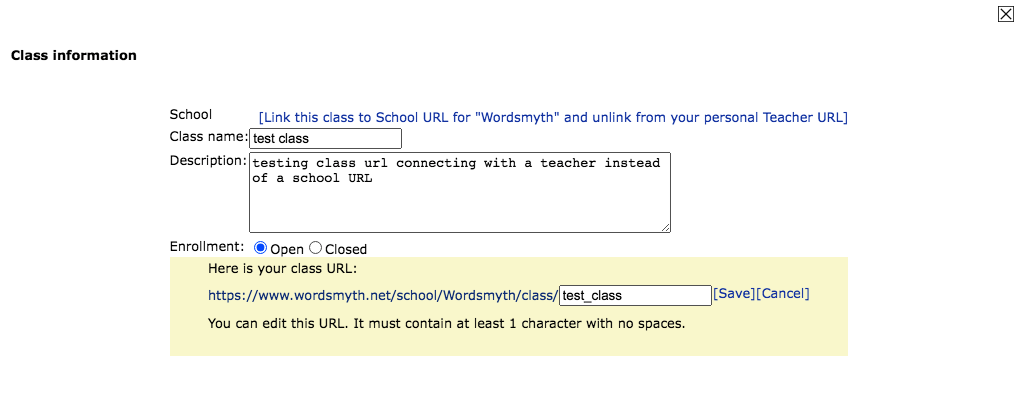
When you create a class, a Class URL is created. This Class URL is to be shared with your students. Please see this help document – Teacher Tools: classes – for more information about class creation. The Class URL is where your students view and complete their assignments. If you are a teacher using Teacher Tools on your school URL, your class URL will look something like this:
Students have to log in to their respective classes. But registration for a class is very simple, and does not require an email address. The name is the only required field. If you want to register your students, please read this help document – Teacher Tools: Students – for more information.
You can also share this Quick Start Guide for students to help your students to register themselves and get started on their assignments. The guide is written in simple language, with screenshots. Your students should be able to read it without too much trouble.
Relink class URLs to School URL
Individual subscribers also have access to teacher Tools, which are often used by parents with their children. If an individual user creates a class on the Wordsmyth URL (www.wordsmyth.net), the class URL looks different:
Sometimes, a teacher may try out Wordsmyth Teacher Tools with an individual subscription, and later decide to upgrade to an Education Group subscription. Sometimes, a teacher with an existing group subscription accidentally creates a class on the Wordsmyth URL, since the interface looks the same. In those cases, you can easily move your class to your school URL.
Be sure you are on your school URL, logged in to your account.
Go to the “Classes” page, clear the filter to see all the classes you created.
click on the class you want to move to your school URL; inside the popup class information window click [edit]
Click the blue prompt text on the top: [Link the class to school URL for “Wordsmyth” and unlink from your personal Teacher URL], and your class will be moved to your school URL.
For upper elementary, middle school, and high school teachers
The Wordsmyth Children’s Dictionary Suite and Wordsmyth Vocabulary Center are designed for upper elementary school to middle school teachers and students.
The Wordsmyth Comprehensive Dictionary Suite and Wordsmyth Vocabulary Center are designed for middle school students (and up) as well as for older ESL students at varying levels from beginner to advanced.
Below are the links to introductory information about Wordsmyth dictionaries and Vocabulary Center:
Teacher Tools are available on both dictionary sites (Children’s and Comprehensive). Teachers can use the tools to manage their classes, create vocabulary lessons, send assignments, and receive reports on students’ performance.
You can always find more help information that goes beyond description of the basic Wordsmyth features.
For K-2nd grade teachers
WILD, the Wordsmyth Illustrated Learner’s Dictionary, is designed for children in kindergarten through 2nd grade. The following links will give you a quick start.
The Wordsmyth Illustrated Learner’s Dictionary (WILD) is organized into four components that facilitate children’s vocabulary learning in two ways: (a) learning new words for concepts the child already has, and (b) learning new concepts and new words that add new ways of organizing the child’s thinking. During the crucial early years, this process changes children’s understanding of how meanings work — their concept of definition. WILD’s unique organization reflects the challenges involved in these changes and provides the resources a child needs to move among the new words and new concepts. Each section of WILD focuses on a particular type of word and concept learning. The components of WILD–and the word learning focus for each of them–are the following:
PICTURE DICTIONARY: forword-object naming;
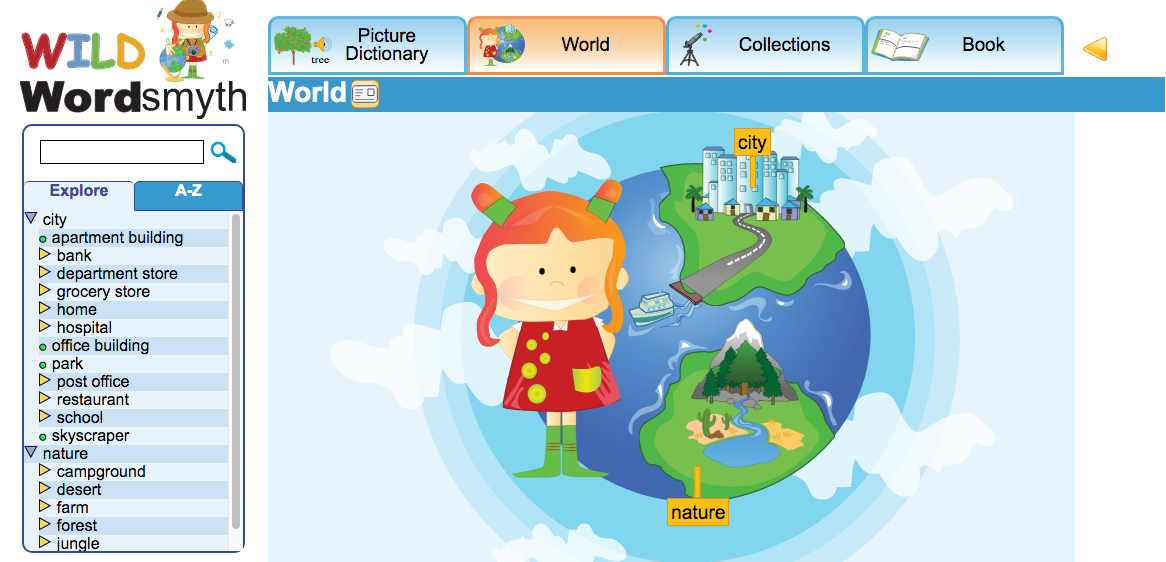
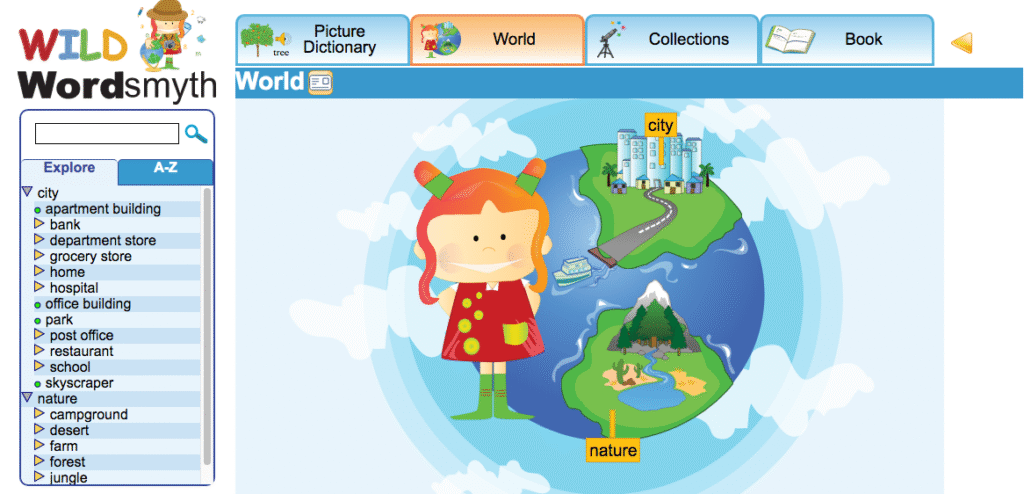
WORLD: for thematic relations among things in their usual environments;
COLLECTIONS: for topical relations (“loose categories”) and taxonomic categories;
BOOK: for an alphabetical organization of words, outside of their connections with the world.
Word learning and concept learning are linked together at the core of early learning and literacy. To learn a word, we need to know how and when the word is used. To learn a concept, we need to know why it is used in a particular way. This how and why of word learning creates a relationship between word learning and the conceptual organization of thought. And according to Tanya Kaefer and Susan B. Neuman, this relationship is bidirectional: “Increases in word learning lead to increases in taxonomic [conceptual] organization, which in turn leads to further increases in word learning. (Tanya Kaefer and Susan B. Neuman, “A Bidirectional Relationship between Concept Organization and word learning” in Child Development Research, (2013)). WILD is designed to facilitate this bidirectional relationship by linking the different aspects of word learning and conceptual organization.
The first phase of word learning involves naming things — the word-object naming relation. In this process, the first learning challenge is to distinguish between proper names and categories — between this animal’s name (“Fido” or “Rover”) and “dog”. “Fido” is a particular individual; but the child learns that while Fido is a dog, the word “dog” includes other individuals. In the Picture Dictionary section, WILD provides multiple images without context to facilitate this process of learning the word “dog.” (The WILD entry for “dog” has 5 images.)
The second phase of vocabulary learning involves thematic relations. In thematic learning, children begin to recognize the associations between objects and the places — settings and situations — in which they are found. Thematic relations provide important information about associations in the real world — things that typically go together. The second section of WILD is the WORLD, with multiple settings and situations and the objects that are typically found in those settings. Each WILD dictionary entry shows the places in WORLD a child will find an object.
The third phase of vocabulary learning involves learning categories. In WILD, the section called COLLECTIONS contains lists of words that identify both “loose categories” or topical relations and “taxonomic categories” or categorical relations. The loosely connected categories — such as “Things people do”, “Indoor Activities” or “Baseball words” — are categories in which the boundaries aren’t strictly or logically defined. Taxonomic categories are also introduced. In this phase, children are introduced to the power of classification with abstract concepts. Logical relations such as “Kinds of” something and “Parts of” something are introduced. The dictionary entry for each word shows a list of the different collections a word appears in.
And finally, the BOOK section presents an alphabetical organization of words, outside their connections with the world. The alphabet — letters and their sounds — are a key to learning the abstract process of pronouncing a string of letters in reading, before you have heard the word pronounced. In WILD and our other online dictionaries, there is an audio pronunciation to listen to, as well as three different text pronunciation systems — ways of transcribing the sound of a word.
The task of academic literacy is to help the child navigate among these ways of understanding meaning — these different versions of the “concept of definition.” The task is not merely to learn how to use abstract meanings in grammatically correct sentences, but also to learn how words and abstract concepts emerge from and relate to the real world. In WILD the child can begin in the concrete world of objects, and move gradually through different settings in the WORLD, to topical and taxonomic concepts in COLLECTIONS, culminating in the alphabetical presentation of the dictionary as a BOOK.
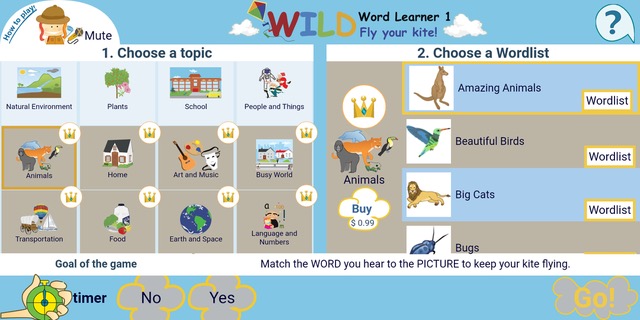
WILD Word Learner is a companion app to the Wordsmyth Illustrated Learner’s Dictionary (WILD). This educational game app gives young learners the opportunity to learn close to 1000 carefully selected words from WILD. These words are distributed over twelve kid-friendly topics and nearly 200 wordlists and make a delightful introduction to the world of English words.
In WILD Word Learner, children choose a topic and a wordlist and start off on a fun word-learning mission!
The WILD Word Learner app, based on the Wordsmyth Illustrated Learner’s Dictionary, is designed to help young native speakers and non-native speakers (K to 2) build their vocabulary through engaging word games. WILD Word Learner 1 (Fly Your Kite) is the first app in the WILD Word Learner series. With this app, kids drag and drop icons to match a word’s sound with its picture. Future apps will focus on matching spelling to picture and sound to spelling.
Carefully selected words
Words chosen for the games are those most relevant to children’s everyday lives or to subjects children often study in school—things such as animals, land forms, types and parts of plants, foods, actions and activities, parts of the body, musical instruments, numbers, and shapes. In addition, the “Earth and Space” topic covers different planets in the solar system as well as named regions and geographical features of our Earth, such as its continents, major deserts, mountain ranges, and seas. In the “Language” topic, concepts described by prepositions and verbs are addressed. For fun as well as for enhanced understanding of the concepts involved, all words that are verbs or prepositions under this topic have animated illustrations.
Every word in the Word Learner game is paired with a charming and child-friendly illustration, and all words have human-voiced pronunciation. Simple definitions and example sentences from the Wordsmyth Illustrated Learner’s Dictionary can also be accessed, at the child’s choosing, by clicking on the entry icon . This additional data makes the app a rich resource for the understanding of specific concepts as well as for the expansion of general knowledge. It also allows for greater adult-child interaction if the child needs or wishes to have the information read aloud by an adult. It can also serve as a source of simple and enjoyable reading practice and language-learning input.
Engaging game design with positive feedback
Based on the latest educational theory and research, the game app is designed so that young children can actively engage in their learning process. Kids can choose what they want to learn, which cultivates their motivation for further learning. Positive feedback at every interaction creates an encouraging learning environment that helps children persist with an activity even when they encounter difficulties.
The game’s audio instructions, which can be turned on or off, gently guide kids in their understanding of how the game functions. The instructions can be heard in three languages: English, Chinese, and Spanish.
Safe environment for kids
No log-in is required, and we do not collect any personal data through the app. However, we would like to encourage parents and educators to use our website, kids.wordsmyth.net/wild, to expand their children’s learning through exploration of our 4000-word dictionary for young children—the Wordsmyth Illustrated Learner’s Dictionary (WILD). This interactive and highly engaging vocabulary learning resource includes all the data from the app and much, much more.
Wordsmyth has always been a resource for online learning, but with so many K-12 teachers engaging in online instruction during this difficult time, we would like to offer a guide to Wordsmyth’s plentiful tools that can help out with the challenging task of teaching children remotely.
For Grades K-2
WILD, a rich and unique online resource with an interactive visual world, provides a charming and engaging means for children to learn both about words and about the real world. It even contains an interactive world map and short descriptions of all the world’s countries. Very young students can safely and enjoyably explore the WILD site by themselves, or they can use it in classroom activities with a teacher.
As you begin to use WILD and encounter more and more of its features, you may wish for further help or suggestions. Our collection of WILD supporting documents will be there to help guide you along your way. This collection of information on WILD will always be accessible on our blog under the category “WILD: Wordsmyth Illustrated Learner’s Dictionary.”
For Grades 3-9
Wordsmyth’s Children’s Dictionary is designed for upper elementary and middle school students. Like the WILD dictionary, the Children’s Dictionary is also well-suited to the needs of young ESL students. Click here to learn more about the Children’s Dictionary.
Wordsmyth recently published its Children’s Dictionary app on both Android and App Store. This app can be used online or offline, which will accommodate the needs of students without consistent internet access.
If you have a school or teacher subscription, you can assign vocabulary word lists for your students to practice online with our vocabulary center activities.
For high school and college students
Our comprehensive dictionary suite contains three levels: advanced, intermediate, and beginner. The linked levels support advanced students and struggling students alike, as users can, with one click, access simpler or more sophisticated definitions and example sentences for words they’ve looked up. The unique leveled structure also provides the best support for older or more advanced ESL students.
In the comprehensive dictionary suite, users will find readable definitions on an uncluttered page, thousands of highly instructive example sentences to clarify the meaning and use of words, synonyms and antonyms, audio pronunciation, and thousands of photos and colorful illustrations. There is also access to glossary, quiz makers, and games in the vocabulary center. Below are links to descriptions of some additional unique features in our dictionary suite that you may find helpful for your students:
Wordsmyth’s Student & ELL Dictionary app is now available on the App Store and Google Play. The app provides the full set of features of our Comprehensive Suite for better user experience on mobile phones or tablets. Once downloaded, it will always be available for you and your students even without internet. Check out the full app description.
Follow us on Facebook, Twitter and Instagram for Wordsmyth Word of the Day and more information about our online teaching resources.
The following is a guide designed to make clear the real nitty-gritty of navigation within WILD. It discusses all four components of WILD—the Book, Collections, World, and Picture Dictionary—but it focuses most particularly on navigation within the Collections and within the WILD World. If you are looking for just a basic overview of WILD functionality, you may wish to go to the Quick-Start Guide to using WILD.
This detailed guide is intended to assist teachers in using WILD’s entertaining visual components to their fullest potential in support of learning. In particular, it seeks to help teachers understand the ways in which they can both allow their students to explore WILD in a fun and independent way as well as to call their students’ serious attention to those things they desire them to learn or to learn about.
The Book: Navigation to and from the expanded entry
The Book’s expanded entry for a word is the place where the largest amount of information about a word is found, as it contains all its images (both illustrations and photographs), definitions, example sentences, and translations. Expanded entries are reached by typing a word into the search box, clicking on the “See more” instruction next to a word on the top level of the Book, or by clicking on an image or entry icon in one of the other WILD components.
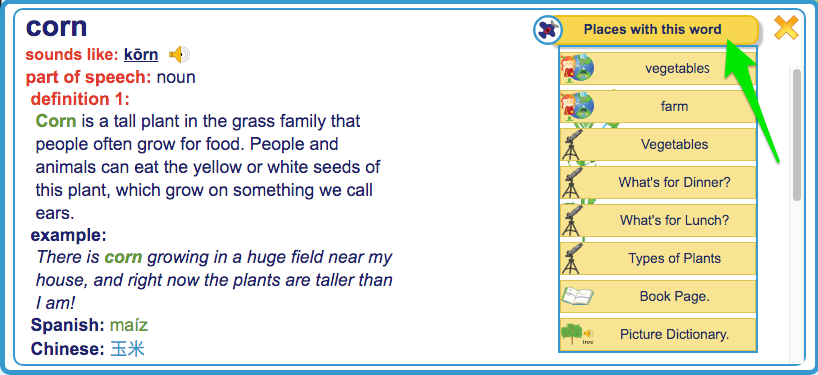
Besides being a repository of information about a word, the full Book entry is also the hub that links it to all the other parts of WILD where the word can be found. Every entry in the Book contains the banner “Places with this word.” Under this banner are listed all the different WILD environments where this word appears.
For example, if you are looking at the entry for “corn,” you can see in the “Places with this word” menu that “corn” can also be found in the Vegetables setting in the Grocery Store in the City. It can also be found in the Farm setting in Nature as well as in the Types of Plants collection, the What’s for Dinner collection, and the Vegetables Collection. Clicking on any one of these labels under “Places with this Word” takes you to the labeled environment. Once in an environment outside the Book, you can always click on the word’s image or entry icon in that environment and return to the word’s entry in The Book. Then, using “Places with this word,” you can navigate again to see the same word in another environment.
Navigation within the Book component
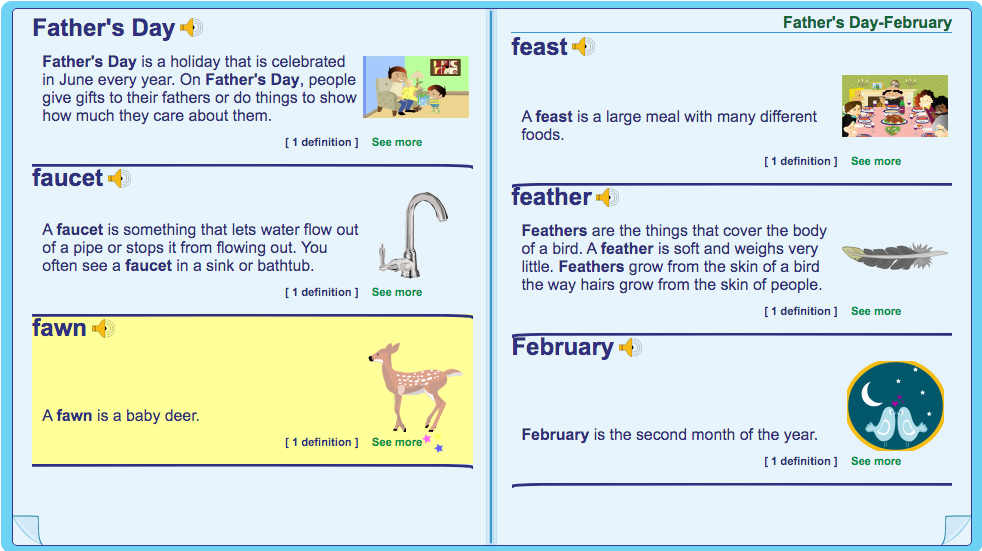
“The Book Page” in the “Places with this word” menu refers to the top level of the Book, which has the appearance of an open dictionary. The “pages” of the Book display images and concise dictionary entries. (They do not offer multiple meanings of words, example sentences, pronunciation, or grammatical information.) Navigating in the Book is done by turning the “pages” or using the search box at the top of the sidebar. Clicking on the “See more” instruction for a word opens the item’s full expanded entry.
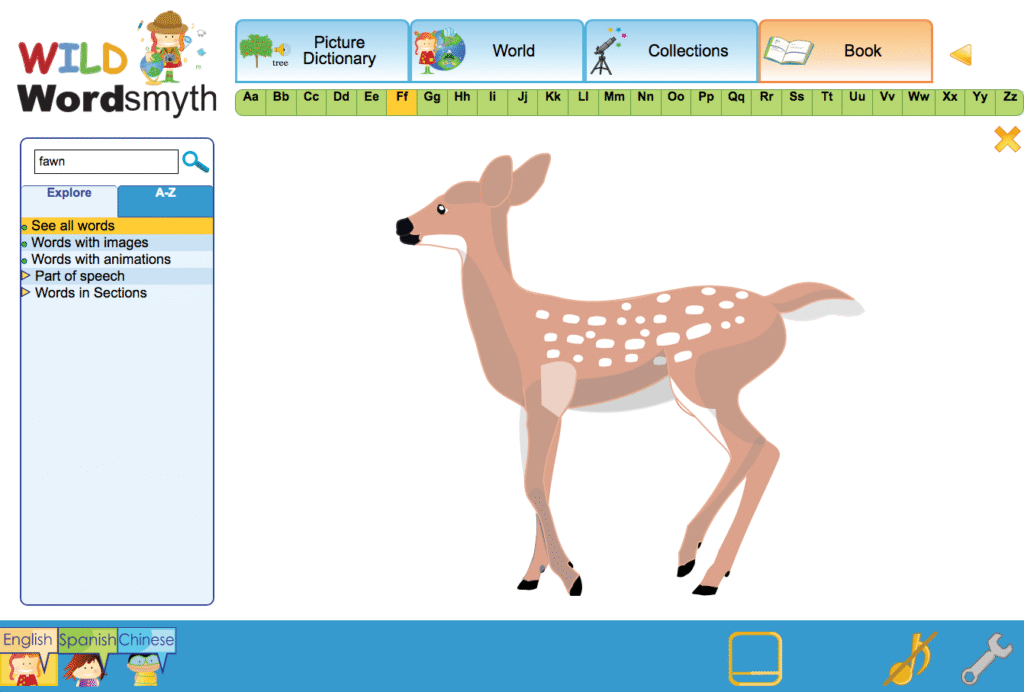
It may be useful to note that the largest images for any item in WILD are found in the Book Page environment. So, for example, there is an illustration for “fawn” in the Young Animals collection and in the expanded dictionary entry, but the “fawn” illustration is at its largest size when you click on the image in the Book Page environment. The many photographs included in WILD are also at their largest size in this environment.
Please note that if you have navigated to the Book Page image from a place in the Collections or World, you can easily get back to your earlier place in either of those environments by using the back arrow at the top right of the screen next to the Book tab.
Navigation within the Collections component
Sidebar navigation versus navigating within the main display: WILD offers two main arenas in which to navigate: the sidebar and the main display. Teachers are more likely to navigate using the sidebar while children are more likely to navigate within the main display. The sidebar provides a more direct way of finding items in WILD and allows the teacher to better control what children are viewing in the main display. This lets the teacher focus the students’ attention on selected items that are to be taught or discussed.
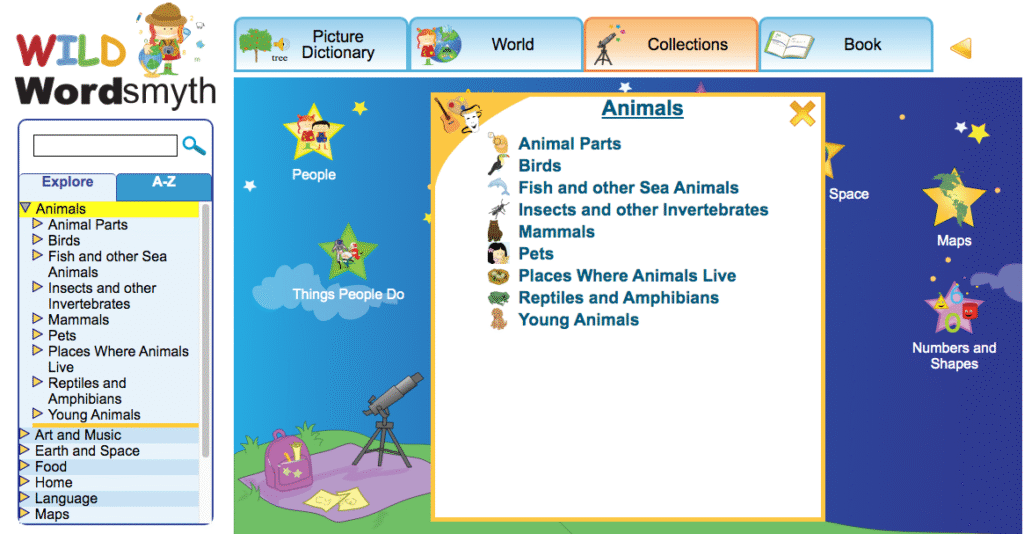
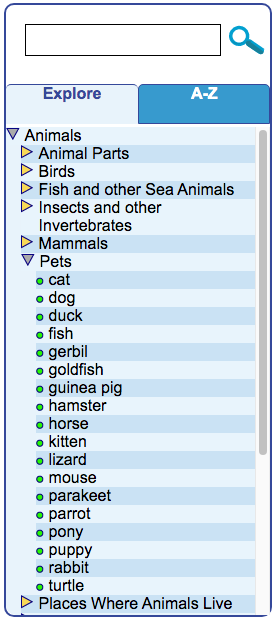
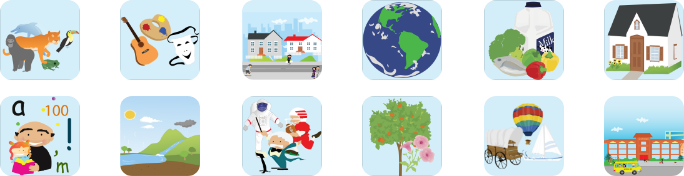
Using the sidebar in Collections: The Collections component is made up of twelve top categories and numerous individual “collections” under each category. The screenshot here shows the top category “Animals,” for example, with its numerous collections, such as “Birds,” “Pets,” “Young Animals,” and “Mammals.” Clicking on a top category label in the sidebar will display there the names of collections that can be accessed under that category. It will also open a visual/textual menu of these collections in the main display, as in the screenshot above. Clicking on the name of a collection in either place will open the collection so that its individual items can be viewed—“ostrich,” “parrot,” “toucan” in the Birds collection, for example. In the sidebar, individual items that make up a collection will appear in a bulleted list under the collection name.
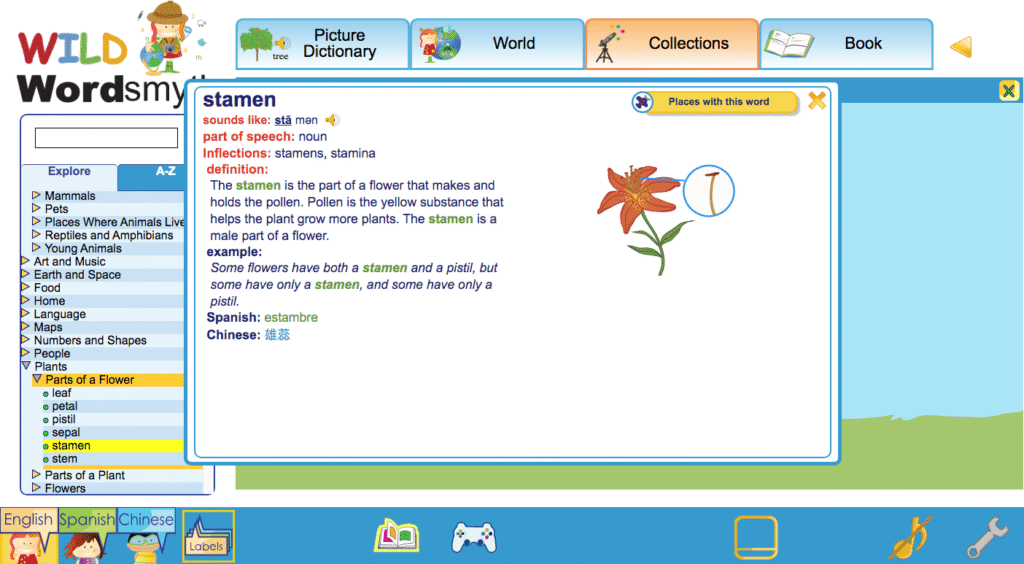
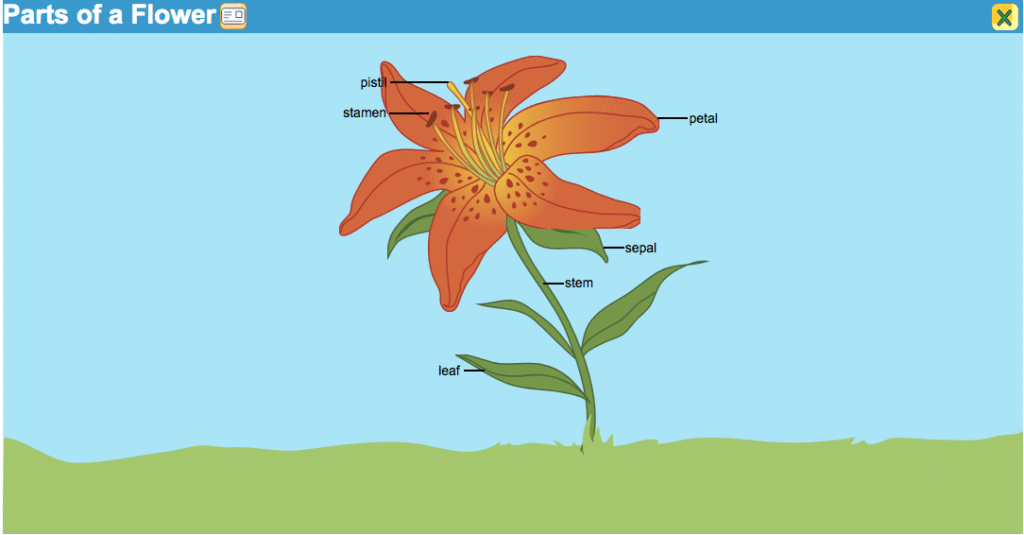
The teacher can also use the sidebar to pop up a desired item from an open collection in the main display (e.g., “stamen” in the “Parts of a Flower Collection”). Popping up an item both expands its image and brings up its audio and dictionary icons. This is done by single-clicking on that item in the sidebar. Double-clicking, or clicking a second time, on a word’s label in the sidebar will pop open the dictionaryentry for that item in the main display. The dictionary entry will show the definition, one or more example sentences, translations, images, as well as other information. (It’s important to note that images in the Book entry can be popped up larger than they first appear and that the Book entry will often contain multiple photographs in addition to the illustration that comes from the collection. If even larger images are desired, clicking on “Book Page” under “Places with this word” will allow you to access images of the item that are even larger.)
The yellow triangle (or “arrow”) next to a top category or collection name in the sidebar can be used for viewing other menus and lists of individual words that make up collections while leaving the main display unchanged. Single-clicking on any of the triangles allows teachers to search through other categories and collections while students continue to view what has already been selected for viewing in the main display. (If one should double-click on a triangle, it will have the same effect as clicking on a sidebar label, however. It will open up a menu or collection in the main display.)
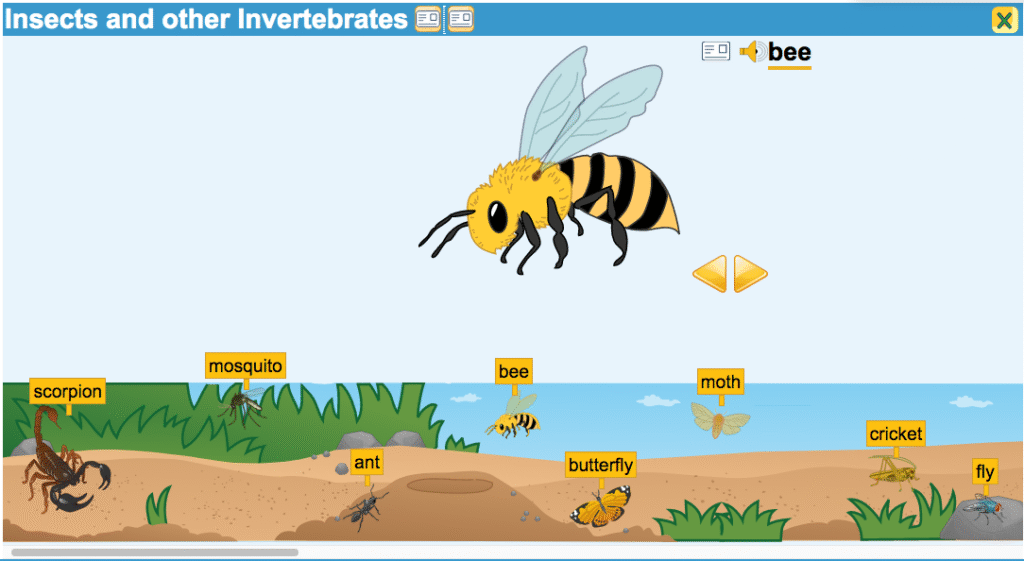
Collections navigation within the main display: When a child (or teacher) mouses over a category in the “stargazer” visual menu—the top level for Collections in the main display—it will simply highlight the image in yellow. Clicking on the image will open the menu of collections for that category in the center of the screen. Making a selection from the menu brings up the selected collection. When opened, the name of the collection (e.g., “Insects and Other Invertebrates,” “Reptiles and Amphibians”) will appear in the blue banner at the top of the display, and Book entry icons next to the collection name will let the child look up the meaning of any unknown words contained in that name in the Book.
Collections are typically displayed as a set of images in a strip which the child can scroll through. Each image in the strip can be clicked on to pop up a larger image of the item. Once an image is popped-up, its audio icon and Book entry icon will appear, giving access to the word’s audio pronunciation and its defining information in the Book. From the popped-up image, the child can also choose to use the navigational arrows to see other popped-up images from the collection instead of scrolling through the strip.
Once an image of an item is popped up, its Book entry can also be accessed by clicking directly on the popped-up image or clicking once again on the item in the strip. Once finished with the Book entry, using the close box or clicking away from the entry will return one to the strip and popped-up image.
While most collections use the strip format, certain collections are displayed in diagram fashion with one large illustration marked with individual labels. For example, the “Parts of a Flower” collection shows the plant parts labeled on a single illustration of a flower. Mousing over a labeled plant part will highlight it and give access to audio pronunciation for its name as well as defining information in the Book.
When the child is ready to view a different collection from the same top category, the back arrow located at the top right next to the Book tab can be used to leave the current collection and go back to the previously selected menu. So, if one is in the “Flowers” collection, for instance, one can use the back arrow to see other collections under the “Plants” menu. (The back arrow can, of course, be used within any component to return to the previous screen.)
If the child wishes to leave the collection and go to a different component of WILD or to the main Collections menu, the tabs at the top of the display can be used to go to the top level of any WILD component—the stargazer menu in Collections, the choice of City or Nature in the World, or the first page of the letter A in the Book or Picture Dictionary.
Navigation within the World component
Sidebar navigation in the World: The World is made up of a large number of different settings divided between City settings such as “School,” Home,” and “Grocery Store” and Nature settings such as “Forest,” “Seashore,” and “Desert.” Within these settings are further sub-settings, such as “Menu” in the “Restaurant” and “Music Room” in the “School.” Some sub-settings even have sub-settings of their own, such as the “Refrigerator” in the “Kitchen” of the “Home” in the City.
When the sidebar shows the initial choice of City or Nature, single-clicking on one of the labels will highlight the category image in the main display and darken the rest of the display, but it will not affect what is visible in the sidebar. Double-clicking, or clicking a second time, on either the City label or Nature label in the sidebar will display the menu of settings under the chosen category in the sidebar and will also open the visual menu in the main display. Once the settings menu is visible under either Nature or City, a single click on the other label will reveal the settings menu for that other category.
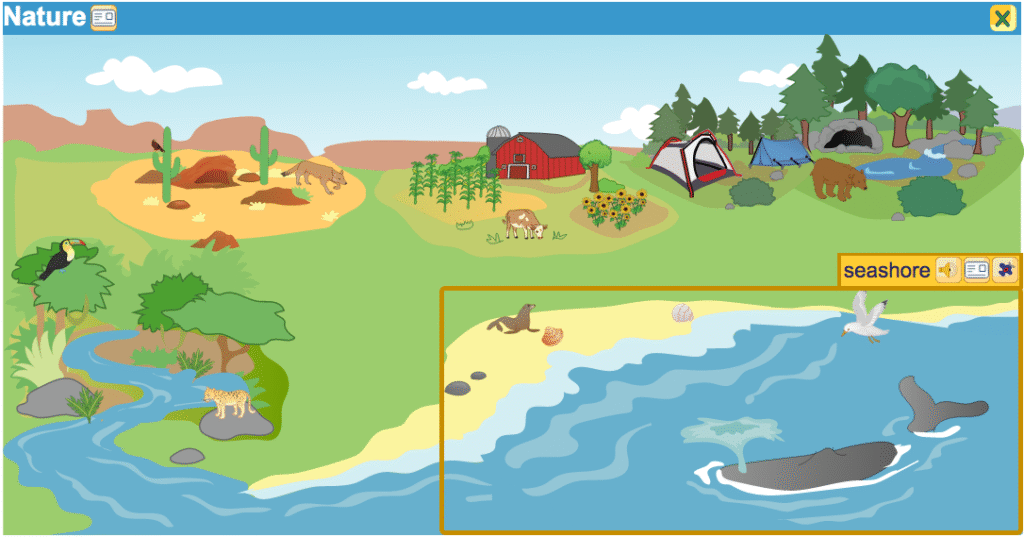
Double-clicking, or clicking a second time, on a setting label, such as “Seashore” or “Hospital,” will reveal in the sidebar the alphabetized names of individual items in the setting as well as the names of any sub-settings, such as “Ocean” or “Waiting Room,” for example. It will also openthesetting in the main display.
Single-clicking on a setting label in the sidebar will simply highlight that setting in the main display while the other parts of the display are darkened. It will not affect what is seen in the sidebar. However, once one setting has been opened and the contents have been revealed, a single click on any other setting label at the same level of operation will show the list of its contents and open that setting in the main display. (Sub-settings, such as the “Den” in the Desert setting or “Pond” in the Forest setting, are at a level below the main settings, so opening these sub-settings, requires a double-click. A single click will highlight a sub-setting and darken the rest of the setting.)
The ability to highlight a setting in the main display without opening it allows the teacher to discuss the concept of that setting (or sub-setting) with students without having to present them with all the visual and textual information that the opened setting offers, which could potentially distract the students from the discussion. This is the strategy behind there being a difference between single-clicking and double-clicking on these sidebar labels.
If a setting is currently open and one wishes to go back to just highlighting other settings rather than immediately opening one or more of them at that level, all that is necessary is to click on the label of the category above the current level. So, for example, if the Seashore is open and one wants to return to highlighting other settings such as Forest or Desert in the main display, one would click on the Nature label. This closes the Seashore and makes the other main Nature settings visible again.
As with the Collections, the yellow triangle, or “arrow,” next to a setting name can be used to search through menus and lists of words in the sidebar while not affecting what is being viewed in the main display. A single click on a triangle reveals the contents of a setting—its individual words and sub-settings–but does not open the setting in the main display. The teacher can also view the contents of multiple settings at the same time by single-clicking on multiple triangles.
At any point that the teacher wishes to focus students’ attention on a particular word while navigating in the World, its listing in the sidebar can be single-clicked to highlight the item in its setting. (The rest of the setting will darken.) Double-clicking on the word’s listing in the sidebar will open the item’s Book entry. A larger image and possibly additional images can be accessed there as well as other dictionary information. The search box, can, of course, be used at any time to highlight a word in a setting or go to its entry if it is not contained in the current setting.
It should be noted that because the highlighting of large items in a setting in the main display can sometimes overlap with that of smaller items in the setting, smaller items can sometimes be tricky to highlight and select—the highlighting of the larger item blocks the smaller items, in other words. When this occurs, the sidebar can be used to highlight and select these smaller items. Album view can also be used in these cases, as album view isolates each item from the rest of those in the setting, making each clickable. (Album view can be turned on by clicking on its icon in the footer.) The sidebar and album view can be useful for this same purpose in the Collections, particularly in the World Maps, where smaller countries can sometimes be blocked by the highlighting of larger ones.
Main display navigation in the World: The main display is designed for easy navigation and exploring. When a child (or teacher) mouses over a setting in the main display, the setting is highlighted and three icons appear: the audio icon, Book entry icon, and airplane icon. Clicking the airplane icon opens the setting. Clicking within the yellow box surrounding the setting also opens it and displays sub-settings contained within it as well as individual items that make up the setting.
Once in a setting, a child may explore individual word items by mousing over images or clicking on them. Mousing over an item highlights it and brings up its audio icon and Book icon. Clicking on an item immediately opens its Book entry. (Note that it is the item itself, the image, that is clicked on. Clicking on a wordlabel in a setting does not cause any action to occur.)
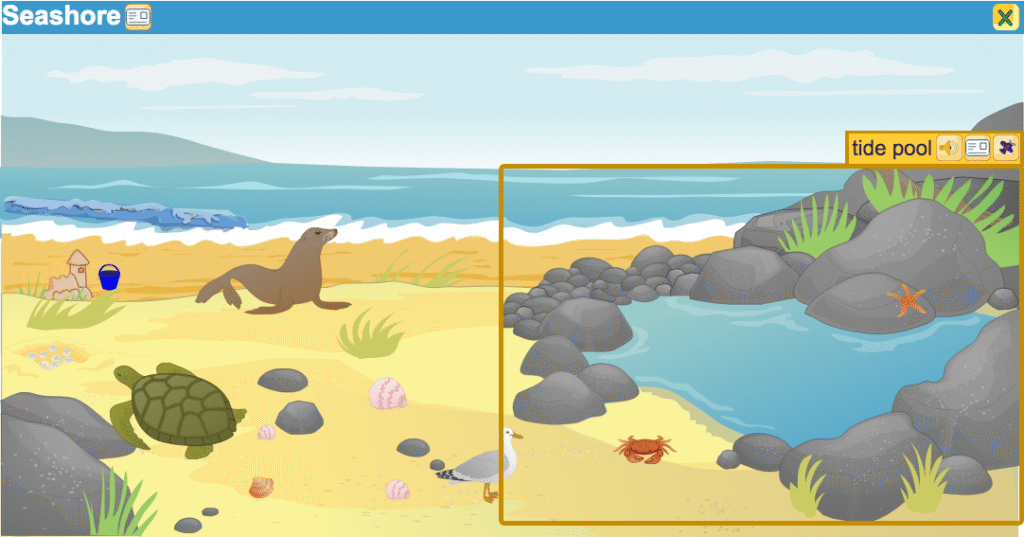
When mousing over images in a setting, the child will find that some highlighted images have airplane icons and others do not. The airplane indicates that the image represents not only a word but a setting—the Tidepool, for example, in the Seashore setting. The child can enter the setting by clicking on the airplane icon or by clicking within the highlighting box surrounding the image.
One scenario for World navigation in the main display might include clicking on the image at the top level to open Nature, clicking to open the Seashore setting, hearing how to pronounce the word “sea turtle,” looking up the word “tide pool” by clicking on its entry icon, clicking off the Book entry and looking again at the Seashore, clicking to open the Ocean setting, and, finally, reading a bit about starfish.
After exploring in one setting, the child may leave that setting by clicking on the close button or using the back arrow. Then the child can click on any other highlighted setting. In addition, as in the Collections, it is always possible to click on any one of the tabs at the top of the screen to go to the top level of any of the WILD components.
Navigation in the Picture Dictionary
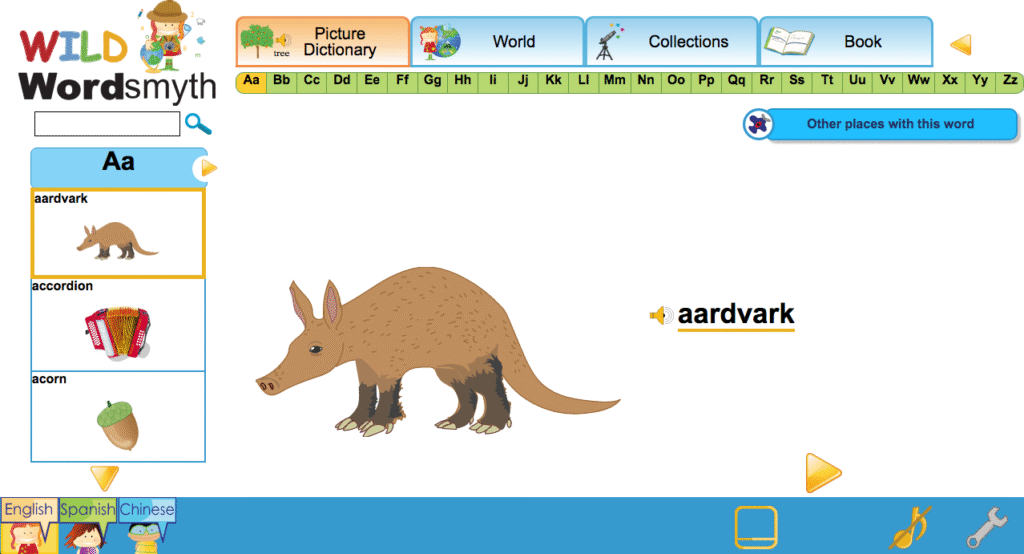
Children can browse through the Picture Dictionary by clicking on the yellow navigational arrows in the main display or by using the scroll bar on the left side of the screen. Children can also use the thumb index at the top of the page to go to words beginning with a certain letter. Of course, teachers can navigate directly to a particular word by using the search box.
The Picture Dictionary defines words by picture only, but more information can be easily accessed through the word’s link with its dictionary entry in the Book. From there the child can navigate to that word in any other environment where it appears in WILD.
This overview of the structure and general operation of WILD is designed to help teachers get started using this rich online resource with their young students. For more detailed information on how to use WILD, please go to A Detailed Look at Navigating in WILD.
WILD’s structure
WILD consists of four components, or learning environments, each providing unique information to assist young learners as they develop skill in different areas of literacy.
The Book: An illustrated K-2 dictionary of nearly 4000 words with easy-to-read definitions, multiple senses of words, and kid-friendly example sentences. All labeled items throughout WILD are linked to their entries in the Book, and the Book entries themselves serve as hubs between the different WILD components.
World: Interactive picture dictionary showing labeled items in natural and urban settings (such as “Forest,” “Farm,” “School,” and “Grocery Store”) with multiple levels for children to explore.
Collections: An expansive set of illustrated objects and concepts arranged in categories called “collections.”
Picture Dictionary: A simple dictionary for very young children with words defined by picture only. As in all other WILD components, human-voiced audio is also included for each word, and each word is linked with its entry in the larger dictionary, the Book.
The WILD Display
The component tabs
At the top of the display are tabs that give access to the top levels of each of the four WILD components (as shown in the screenshot below). No matter where you are in WILD, you can always click on one of the blue tabs at the top of the screen to go to the starting level of any of these four components.
The main display
The center area of the screen, “the main display,” offers simple, visual ways for children to browse and explore in WILD. In the World, children click on settings in the main display to enter those settings and explore what is there. In the Collections, children first click on a choice from the visual/textual menu and then browse through the selected collection by sliding the strip at the bottom of the screen or clicking from one popped-up item to the next. In the Book, children can browse through the dictionary by electronically turning the pages, and, in the Picture Dictionary, children can scroll through the pictures using the sidebar or clicking the navigational arrows.
The search box and the sidebar
The simplest and most direct route to a word in WILD is the search box. If you have a particular word you want to focus on, you can simply type it in the search box, which is always found in the upper left corner of the page. If the word is contained within the learning environment that you are currently in—the Jungle in the World, for example—the result will be highlighted there. If it is not contained in that environment, the word will come up from the Book.
Below the search box, the sidebar in each WILD component allows for more structured, textual browsing. The sidebar is an excellent tool for teachers to quickly find words, settings, and collections they wish their students to focus on. Teachers will likely use the sidebar as their primary means of navigating the site.
At the top of the sidebar, there are two tabs: Explore and A-Z. The sidebar tab labeled “Explore” displays a table of contents for the WILD component you are presently in, or shows ways of filtering the contents of that component. If you are in the World, the sidebar shows the menu of the places (“settings”) where you can go and all the items that can be found in each place. In Collections, it shows a menu of all the various top categories and collections, and a list of all the individual items in each. And in the WILD Book, it shows a menu of features by which you can filter the dictionary list so that you can see only those entries containing a desired feature—only words that are adjectives, for example, or only words that have animated illustrations in their entries.
The tab labeled “A-Z” in the sidebar gives access to an alphabetical list of all the individual words that can be found in the particular WILD component that you are currently in.
The footer: ways to customize the display
The footer in the WILD display gives various options to control and customize the learning environment.
Language options: While English is the default language for WILD, you can choose to add Spanish or Chinese by clicking on the respective language icon. Clicking once again will turn the selected language off. (English can be turned off as well. However, if English is turned off, it will need to be turned on again in order to turn off Spanish or Chinese.)
Labels: The default view for World and Collections shows individual items labeled in their settings or collections. Word labels can be turned off or turned back on by clicking the Labels icon in the footer.
Album View: Album View takes the individual labeled images out of a Collection or a World setting and displays them against a plain, white background as in a photo album. (The images are presented in alphabetical order.) Album View can be helpful in focusing students’ attention on particular items that are being taught or discussed. Clicking the Album View icon turns the view on or off. Clicking the close box also returns you to the setting or collection that you came from.
Games: In World and Collections, you will see a games icon in the footer. Clicking on the games icon will activate vocabulary games using the words of the particular collection or setting you are in.
Full screen: Full screen view hides the sidebar. The sidebar is primarily for teachers to use for searching and browsing when planning a lesson or activity or when guiding a lesson. When children are using WILD to explore on their own, full screen view can help them concentrate. Full screen view with labels off can also be used for fun and informal quizzing.
Audio tooltips and tooltips language: Audio tooltips can help a child who can’t read yet to explore WILD easily. When audio tooltips are on and a user mouses over an icon anywhere in WILD, an audio explanation about the icon will play automatically. In the footer, the audio tooltips icon looks like a musical note. The icon next to it in the footer—the wrench—can be used to change the tooltip audio language to Spanish or Chinese.







 . This additional data makes the app a rich resource for the understanding of specific concepts as well as for the expansion of general knowledge. It also allows for greater adult-child interaction if the child needs or wishes to have the information read aloud by an adult. It can also serve as a source of simple and enjoyable reading practice and language-learning input.